Aircraft Setup
The Aircraft tab of a project describes the aircraft as it flies: its control surfaces, motors, battery, mass, colours and autopilot settings. It builds the flight model from these and from the CFD results. The same editor appears as the Aircraft step of the New analysis wizard (Step 5: Aircraft).
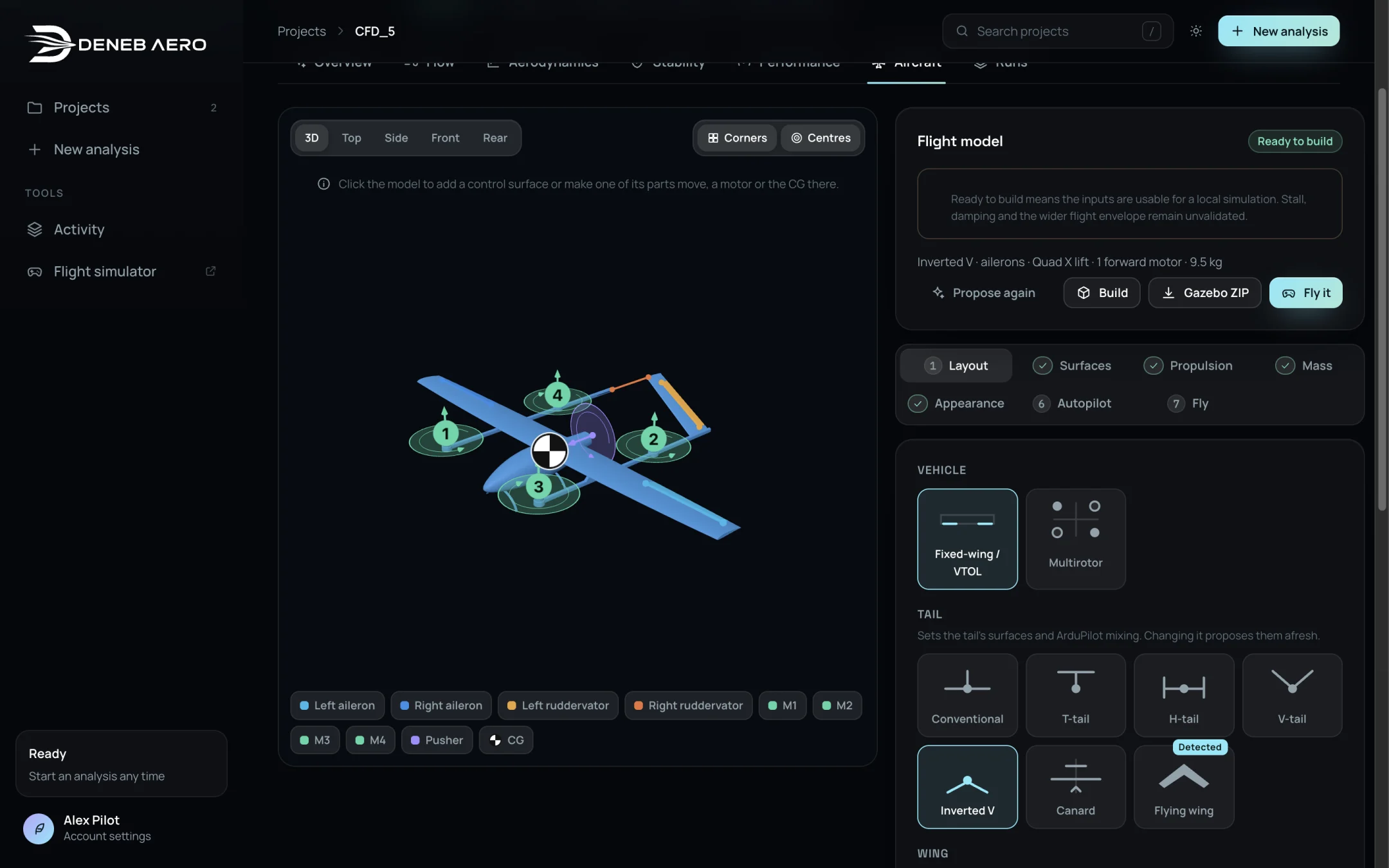
The Aircraft tab with the Layout step open.
Window layout
- 3D view (left)
The aircraft with its control surfaces (coloured), the lift rotors (numbered markers), the forward motor and the CG (quartered disc). View buttons: 3D, Top, Side, Front, Rear. Corners and Centres set what the pick points snap to. The chips under the view select a surface, motor or the CG.
Click the model to add a control surface, to make a CAD part move, or to place a motor or the CG there.
- Flight model box (top right)
The state of the flight model, for example Ready to build, the issues still to fix, the summary line (for example Inverted V · ailerons · Quad X lift · 1 forward motor · 9.5 kg) and the buttons Propose again, Build, Gazebo ZIP and Fly it.
- Steps (right)
Layout, Surfaces, Propulsion, Mass, Appearance, Autopilot and Fly. A number on a step is the count of issues to fix in it; a tick means it is complete.
Ready to build means the inputs are usable for a local simulation. Stall, damping and the wider flight envelope remain unvalidated.