The Studio
The Studio is the user interface of Deneb Aero. It opens in your web browser.
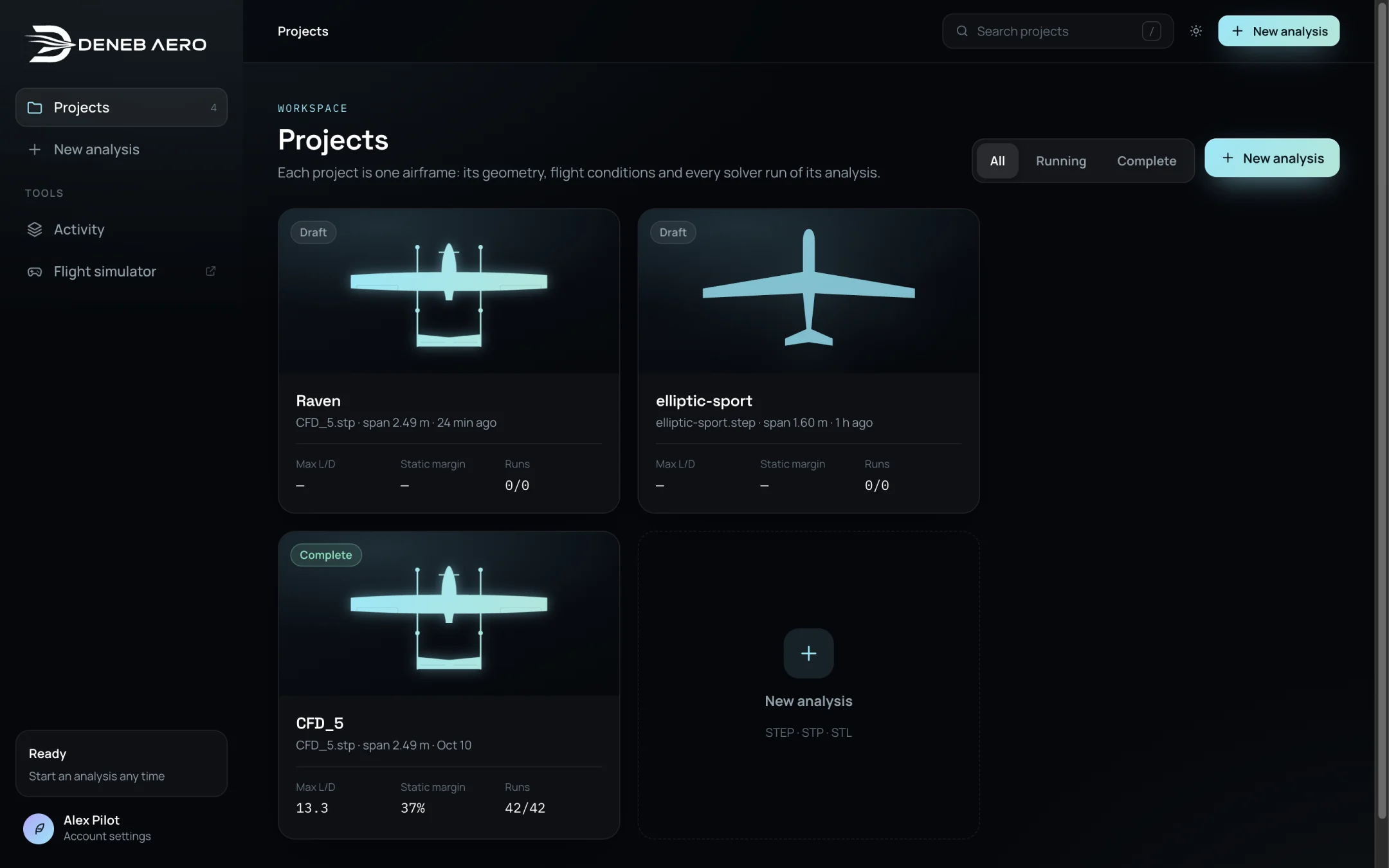
The Projects page.
Layout of the window
- Sidebar (left)
Projects — the list of your projects, with their number.
New analysis — starts the New analysis wizard.
Activity — every run across your projects. See Activity.
Flight simulator — opens the flight simulator in a new tab. See Flight Simulator.
The status card of the simulation service. See Connecting This Computer.
Your name. Select it to open the Account page.
The power button Quit Deneb Aero, in the Studio of the application.
- Header (top)
The breadcrumb, for example .
Search projects. Press / to move to the search field from anywhere.
The theme button, which switches between the dark and the light theme.
New analysis.
Projects
Each project is one airframe: its geometry, its flight conditions and every solver run of its analysis. A project card shows:
a picture of the aircraft from above,
the state: Draft (the wizard is not finished), Running, or Complete,
the name, the CAD file, the span and the time of the last change,
Max L/D, Static margin and Runs (finished of planned).
Use All, Running and Complete above the cards to filter the list. Select a card to open the project. A draft opens in the New analysis wizard at the step where you left it.
Saving
Changes to projects are saved to your account automatically. While a change is being saved, the header shows Saving…. If a save fails, a banner offers Retry saving, and under Recover changes a download of the unsaved changes.
Notifications
When a run finishes or stops, a notification is shown at the bottom right of the window, wherever you are in the Studio, for example CFD_5 · α 4° solved. Notifications are also shown when Deneb Aero queues follow-up runs by itself or frees disk space.
Quitting
In the Studio of the application, the power button next to your name quits Deneb Aero. If a run or a flight is in progress, you are asked to confirm. A stopped run resumes from its last checkpoint the next time Deneb Aero starts.