Tutorial: Your First Analysis
This tutorial takes one aircraft from its CAD file to a flight in the simulator. The aircraft is the Raven, a 2.49 m span VTOL quadplane with an inverted V-tail, four lift rotors and a pusher motor. The steps are the same for your own aircraft; the pages linked from each step describe every option.
Before you start:
Deneb Aero is installed and running (Installing Deneb Aero).
You are signed in to the Studio of the application, and the computer is connected (Connecting This Computer).
You have a STEP file of the aircraft in which each control surface is a separate solid. See Preparing the Geometry.
Step 1: Upload the CAD file
Select New analysis in the sidebar.
Drag the STEP file onto Drop CAD here, or browse, or select the area and choose the file.
Wait while the file is read and checked. The wizard moves to the Geometry step by itself.
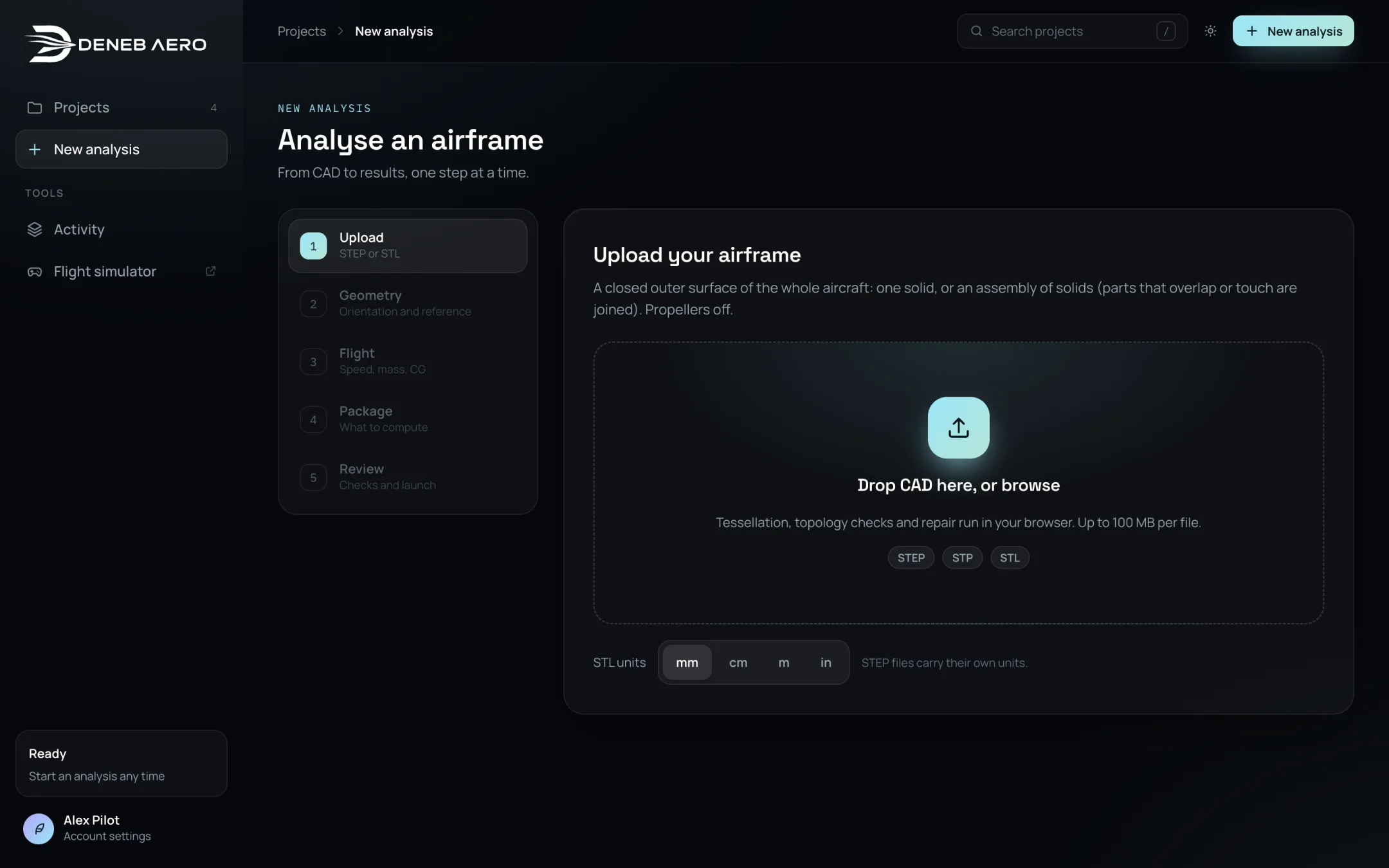
The Upload step.
Step 2: Check the geometry
Look at the Top and Side views. The arrow labelled WIND must point from the nose to the tail, and the aircraft must be upright in the side view. If not, change Wind blows along and Up is.
Read the notes under the 3D view. For the Raven, the wizard reports 1.0 mm slots between the wing and the four control surfaces. These are the hinge gaps and are expected.
In Project name, type
Raven.Check Wing reference area, Mean aerodynamic chord and Wing span. For the Raven the measured values are 0.494 m², 0.214 m and 2.49 m.
Select Looks right.
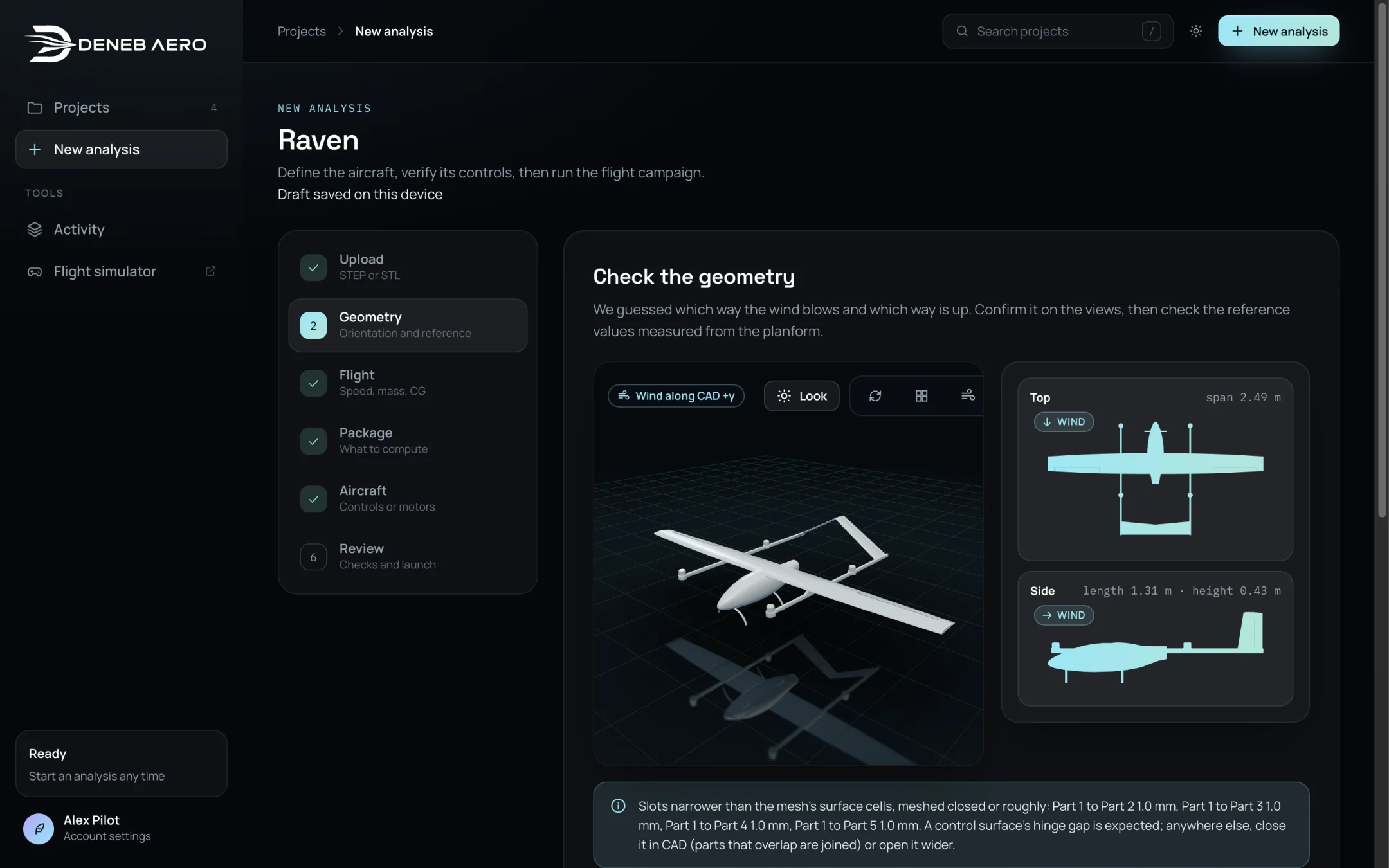
The Geometry step with the Raven.
Step 3: Enter the flight conditions
In Cruise speed, type
19.In Take-off mass, type
9.5.In CG behind the nose, type
0.42. The hint below the field shows that this is 25% of the mean chord.Leave Altitude at 0 and Temperature against standard at 0 for a standard day at sea level.
Select Choose a package.
Step 4: Choose what to compute
Select Full flight model. The list below shows each block of runs with its number of runs and its time on this computer.
Leave the blocks as they are and select Set up aircraft.

The Package step with Full flight model selected.
Step 5: Set up the aircraft
Select Propose from the geometry. Deneb Aero proposes a tail type, the control surfaces, the lift rotors and the forward motor.
Check the proposal in the summary line, for example Inverted V · ailerons · Quad X lift · 1 forward motor · 9.5 kg. If the tail or wing type is wrong, open Layout and select the correct one. For the Raven, select Inverted V and Ailerons.
Open Surfaces. If the list says that a surface is missing, click that control surface on the model and select its role in the menu (for the Raven: and ).
When the box at the top shows Controls assigned, use the buttons under Check the controls (Roll right, Pitch up and so on) and watch the surfaces move on the model.
Select the box I checked the motion, assigned parts and hinge clearance for all controls through ±10°.
Select Review.
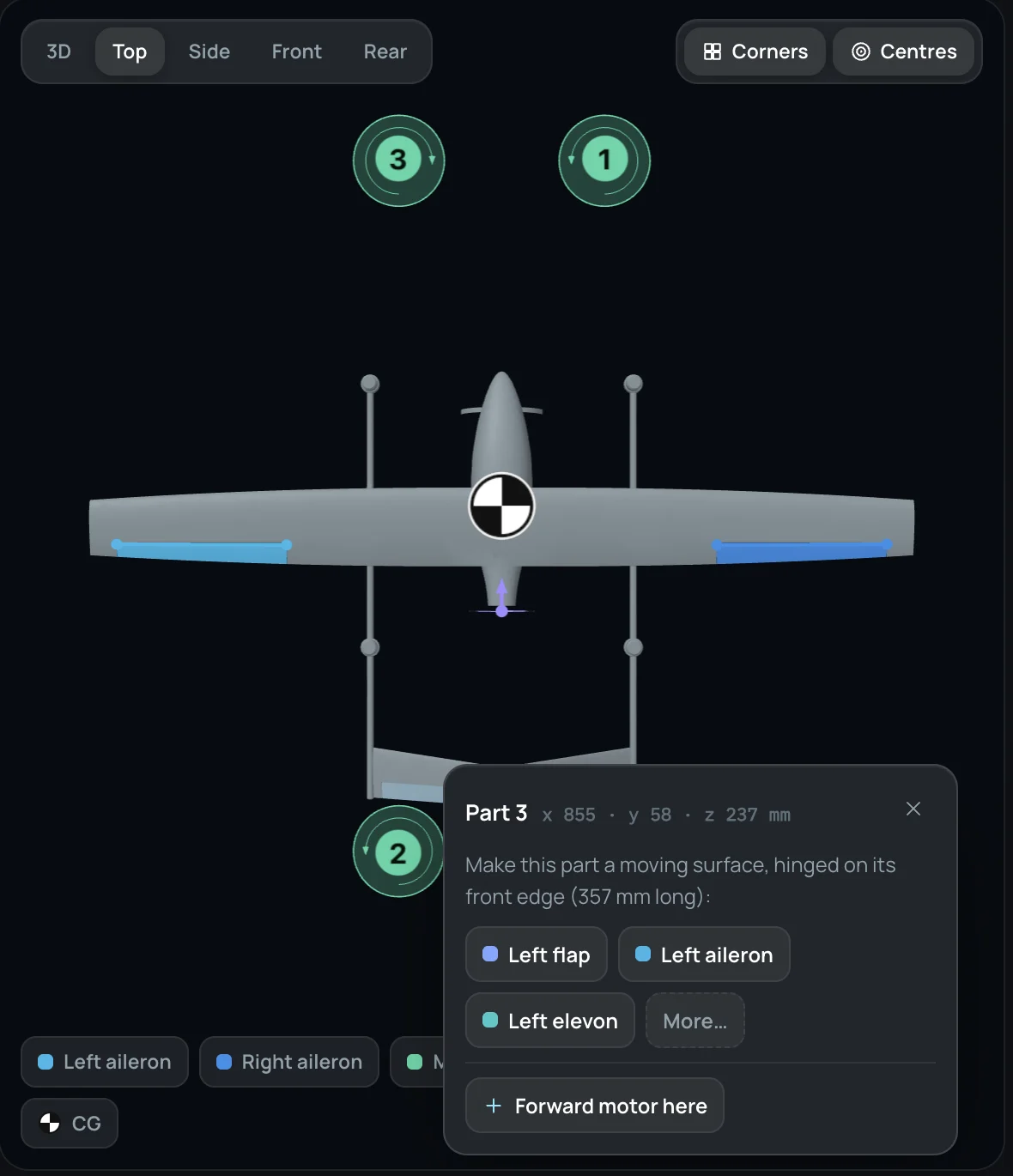
Clicking a separate CAD part offers to make it a moving surface.
Step 6: Review and launch
Check the list of checks on the right. Each must show a tick. Note the Estimated turnaround and Disk for the results.
Under Keep the flow for, leave the cruise angle and the lift peak selected.
Select Launch analysis.
The runs are queued and the project opens. You can close the browser; the runs continue. The full flight model of the Raven was estimated at 22–40 hours on the computer used for this tutorial (Apple M3 Pro, 36 GB).
Step 7: Read the results
As runs finish, the project tabs fill in. Start with Overview: best glide, stall estimate, power to cruise, static margin and the list What we found. Then look at the flow in Flow and the charts in Aerodynamics, Stability and Performance. See Reading the Results.
Step 8: Fly the aircraft
When the campaign is complete, select Fly it at the top of the project. The flight simulator opens with the aircraft on the runway. Press T to take off to 20 m, then 6 for Cruise. See Flying.
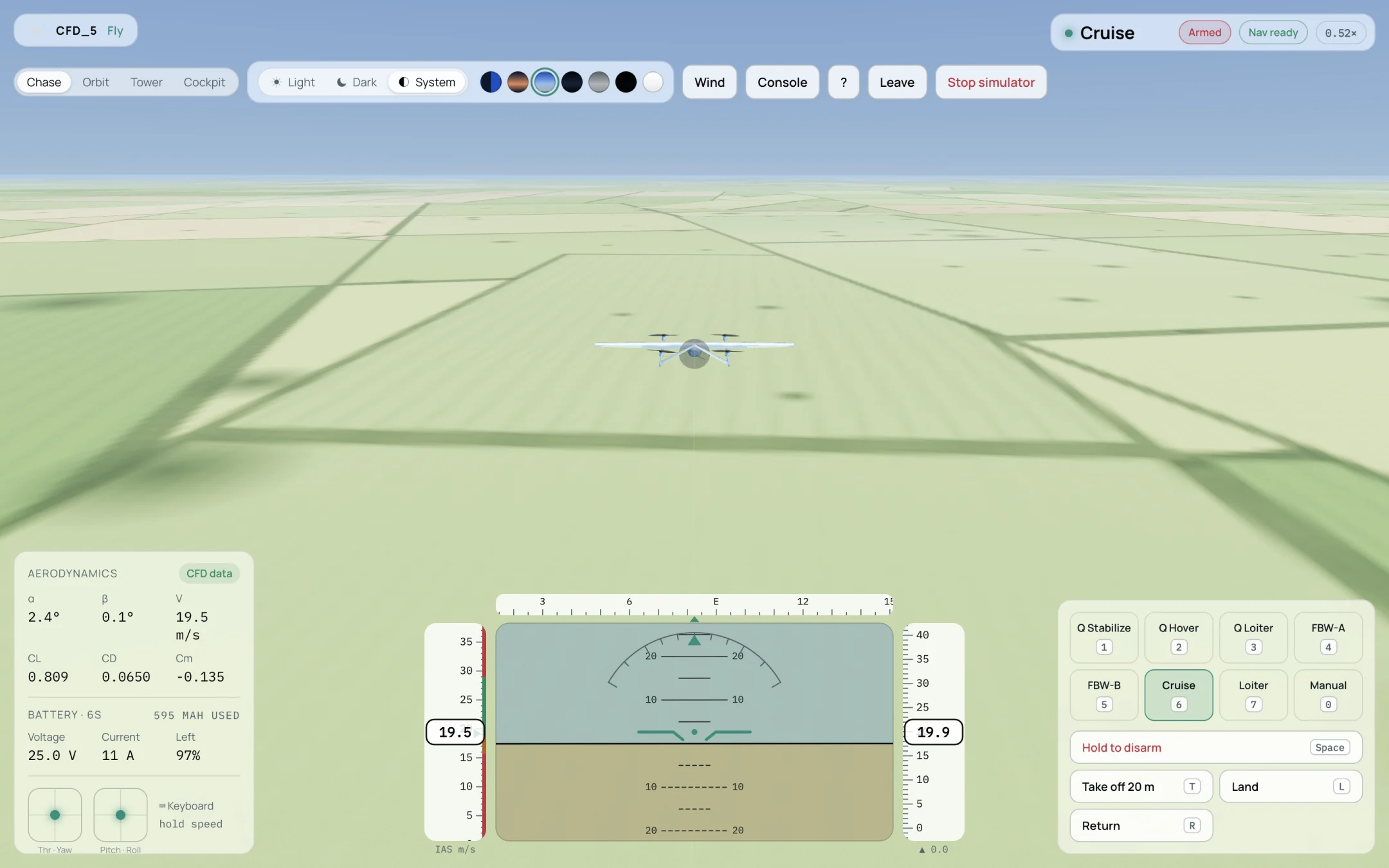
The Raven in Cruise mode at 19.5 m/s.