Surfaces
The Surfaces step lists the control surfaces and lets you check that they move the right way.
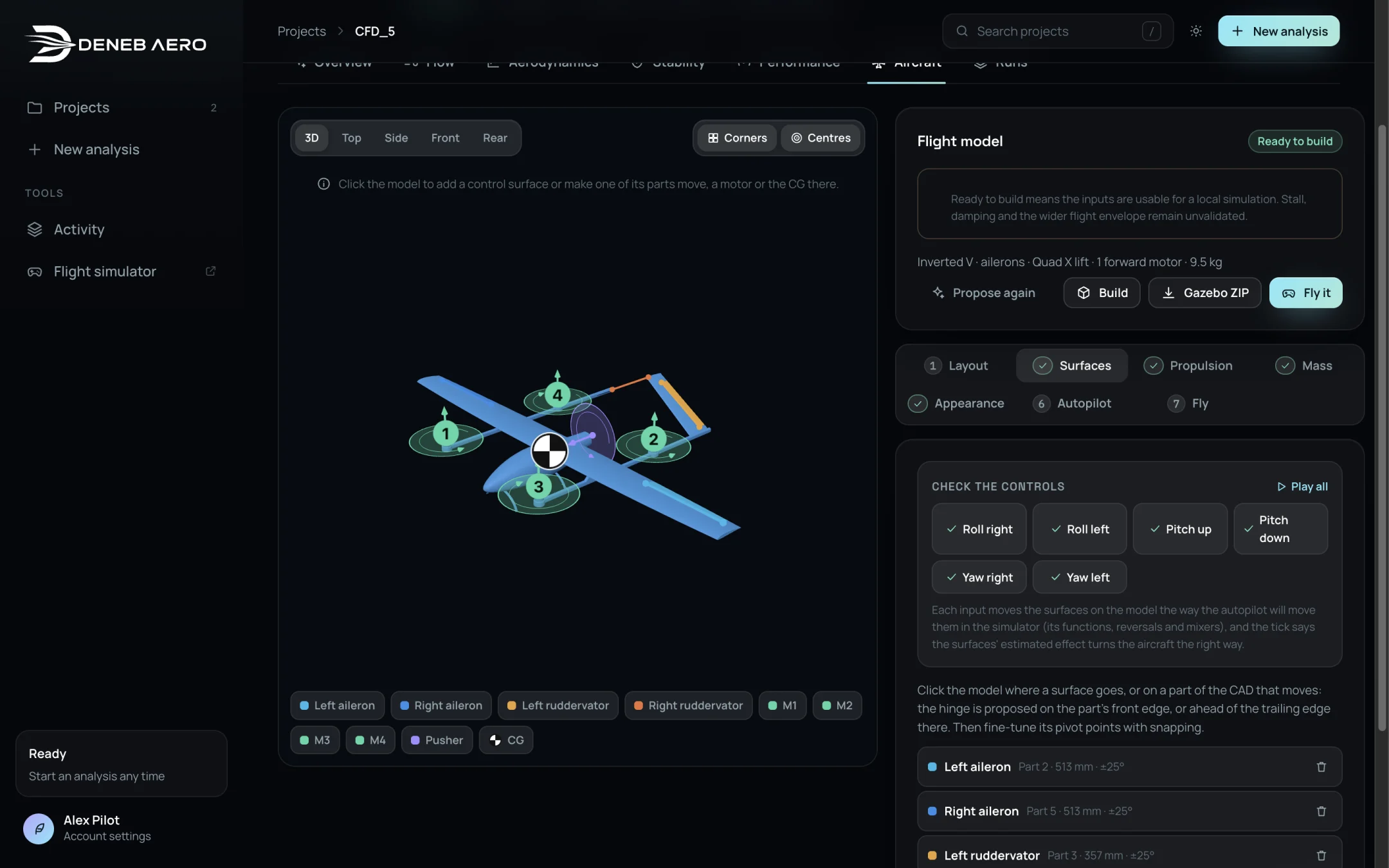
The Surfaces step with the control check.
Adding a surface
Click the model on a separate CAD part that moves. The menu proposes to make it a moving surface hinged on its front edge; select the role.
Or click the model where a surface should be. The hinge is proposed ahead of the trailing edge there.
Or choose a role in Add a surface. Deneb Aero proposes the surface from the geometry if it can.
The roles are: left and right aileron, left and right elevon, left and right flap, elevator, rudder, left and right ruddervator.
Select a surface in the list to edit it. Select the bin icon to remove it.
Surface settings
- Role
What the surface does. Sets its ArduPilot servo function.
- Propose hinge
Proposes the hinge line again from the part.
- Moves as
The CAD part that rotates with the surface. Required for the CFD control runs.
- Pivot point 1 and Pivot point 2
The two ends of the hinge line, in mm, in the solver’s axes (x aft, y up, z left). Select Pick on the model to place a point by clicking; it snaps to corners or centres.
- Size and travel
Chord behind the hinge (mm), Share of the local chord (%), Travel, trailing edge up and Travel, trailing edge down (degrees).
- Weight and servo
Mass (g), Servo speed (°/s) and Servo torque (N·m). The servo torque is checked against the hinge moments in the report.
- Inertia
Of the part (calculated) or Measured.
Check the controls
When all surfaces are assigned, Check the controls appears with the buttons Play all, Roll right, Roll left, Pitch up, Pitch down, Yaw right and Yaw left.
Each input moves the surfaces on the model the way the autopilot will move them in the simulator, with its functions, reversals and mixers. A tick next to an input means that the estimated effect of the surfaces turns the aircraft the right way. Check each input before the CFD runs: a wrong assignment produces wrong control tables.