Step 6: Review and Launch
The last step summarises the analysis and checks that it can run on this computer.
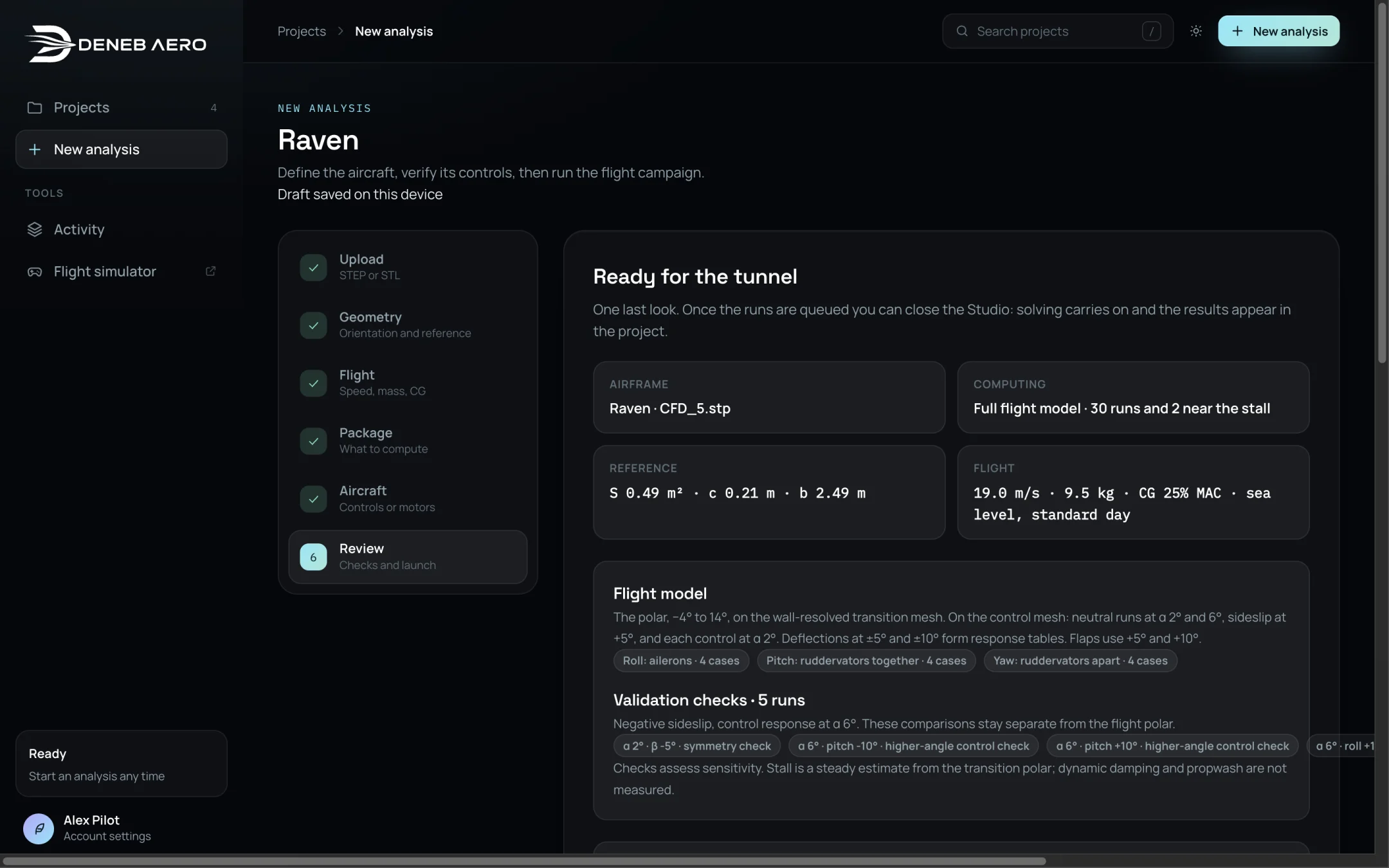
The Review step.
Summary
The left side lists:
Airframe — the project name and the CAD file.
Computing — the package and the number of runs.
Reference — S, c and b.
Flight — speed, mass, CG and the air.
A description of each group of runs. For a flight model, it lists the cases for each axis, for example Roll: ailerons · 4 cases and Pitch: ruddervators together · 4 cases.
Validation checks — runs that assess sensitivity. They are kept apart from the flight polar.
Checks
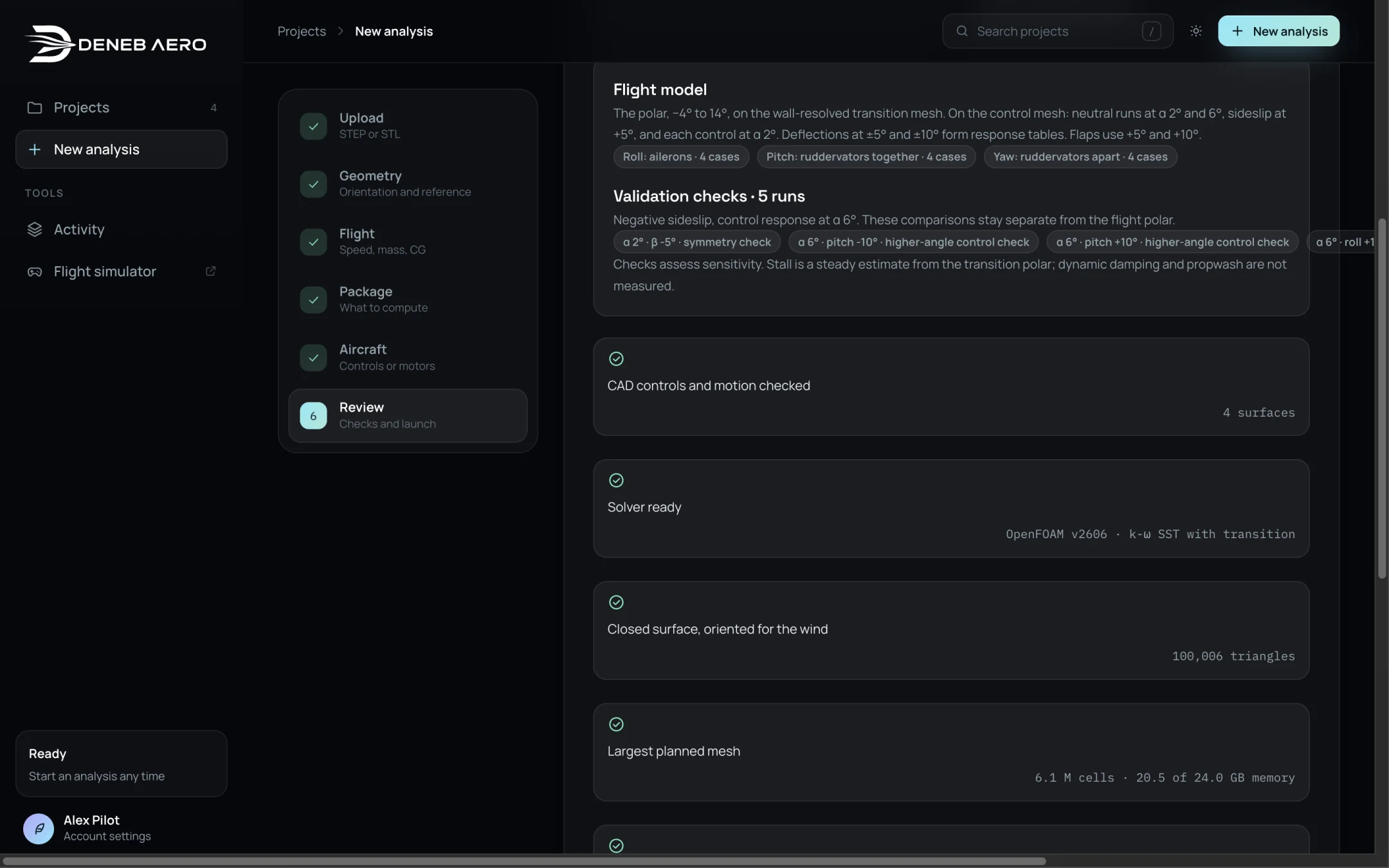
The checks and the choice of flow to keep.
Check |
Meaning |
|---|---|
CAD controls and motion checked |
The Aircraft step is complete. Shows the number of surfaces. |
Solver ready |
The simulation service is online. Shows the OpenFOAM version and the turbulence model. |
Closed surface, oriented for the wind |
The geometry is ready. Shows the number of triangles. |
Largest planned mesh |
The largest mesh of the analysis, in millions of cells, and the memory it needs against the memory available for a run. If it does not fit, the check fails and the analysis cannot be launched. |
Estimated turnaround |
The total time, from the runs already solved on this computer. |
Disk for the results |
The disk space kept after the analysis, and the peak while solving. |
Keep the flow for
A run’s flow solution and mesh take gigabytes; its loads, convergence history and geometry take megabytes. Select the angles whose full flow should be kept, to view in the Flow tab. By default they are the cruise angle and the lift peak. Runs with the propellers turning keep their flow as well.
Every other run keeps its loads and gives up its flow solution and mesh: the runs of the polar when its last angle is solved, the others as each finishes. The charts, the flight model and the simulator do not need the flow solution. To view the flow of another run later, that run must be solved again. See Disk Space.
Launching
Select Launch analysis. The runs are queued and the project opens on its Overview tab. Solving continues when you close the browser.
To stop the analysis later, see Runs and the Queue.