Starting a Flight
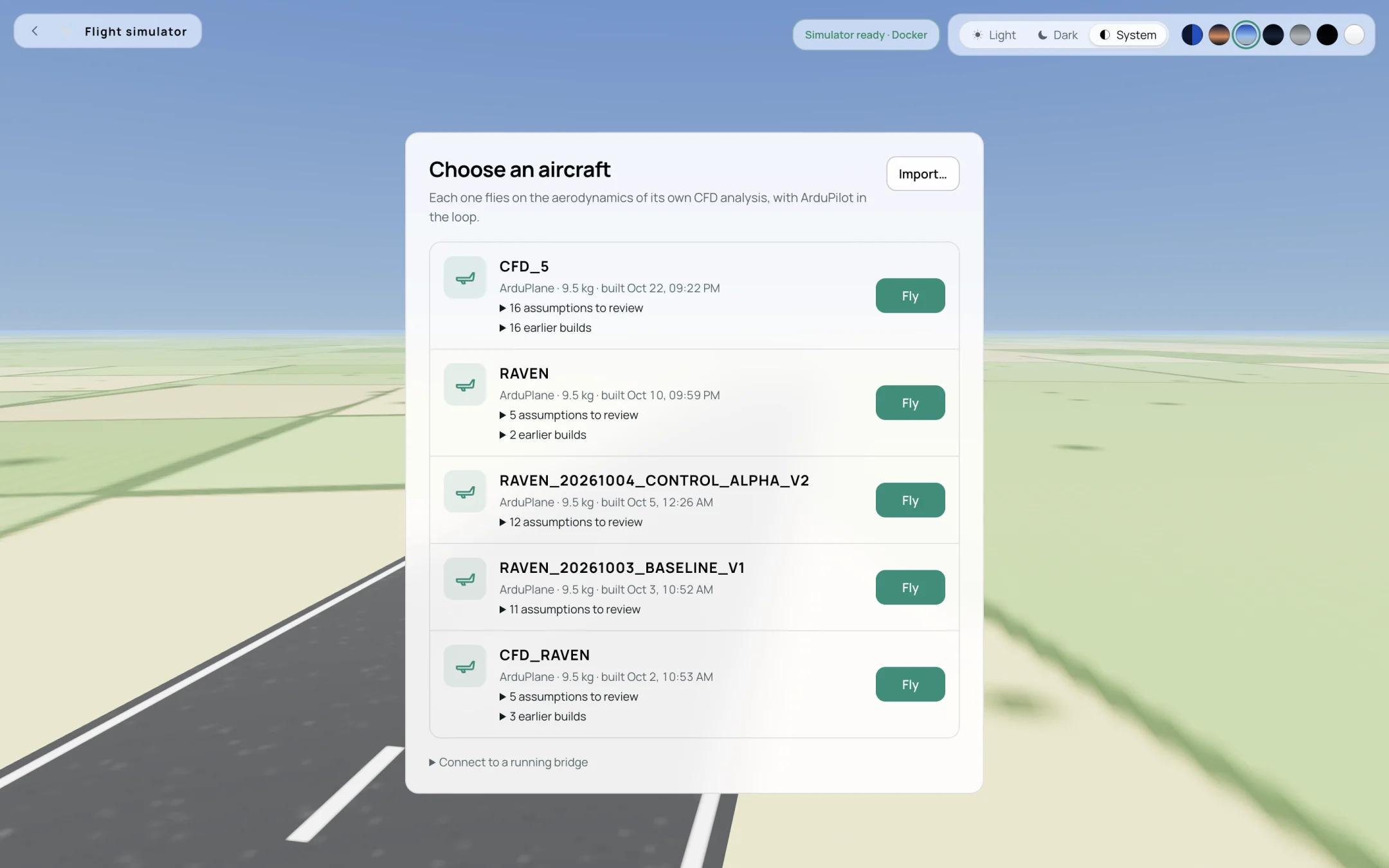
The list of aircraft.
Choosing an aircraft
The page lists each aircraft whose flight model has been built, newest first, with its autopilot (ArduPlane or ArduCopter), its mass and the time of the build.
Assumptions to review opens the list of the flight model’s assumptions. See Building the Flight Model.
Earlier builds lists the previous builds of the same aircraft; each can be flown.
Fly starts a flight.
Import… adds a flight package from a folder.
Connect to a running bridge (advanced) connects the cockpit to a simulator started elsewhere, with its bridge address and session token.
The chip at the top right shows whether the simulator is ready, and what it runs on (for example Simulator ready · Docker). The buttons next to it set the light or dark theme and the colour of the sky.
Procedure
Select Fly next to the aircraft.
Gazebo, the autopilot and the link to the browser start. The first flight on a computer downloads the simulator first; this takes a few minutes. Later flights start in less than a minute.
The cockpit opens by itself, with the aircraft on the runway, disarmed. See Flying.
To cancel while starting, select Cancel.
Leaving and ending a flight
Leave returns to the list and keeps the simulator running. The list then shows simulator running with Open cockpit and End flight.
Stop simulator ends the flight and stops Gazebo and the autopilot.
Only one browser can fly a running simulator. If another one is connected, the cockpit shows Disconnected — Another client is connected. Select Back and use End flight, then start the flight again.