Starting a Design
When Design opens for the first time, it shows the Start a design sheet. After that, it opens the design you edited last. The tools New design: templates and Open a saved design in the bar bring the sheets back.
Start from a template
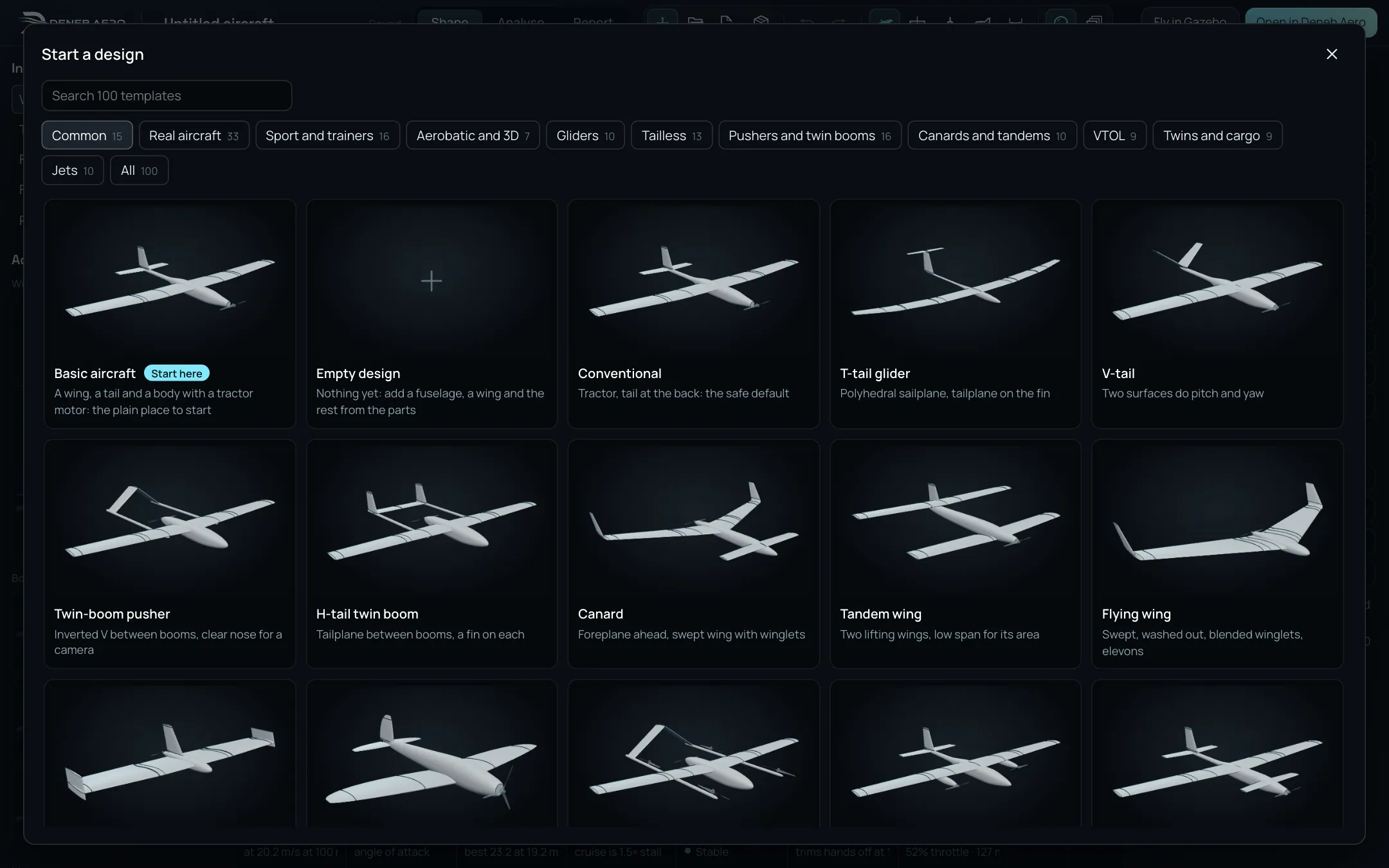
The Start a design sheet.
Select New design: templates (the plus sign in the bar).
To find a template, type in Search templates, or select a group: Common, Real aircraft, Sport and trainers, Aerobatic and 3D, Gliders, Tailless, Pushers and twin booms, Canards and tandems, VTOL, Twins and cargo, Jets or All. The number on a group is the number of templates in it.
Select a template. It opens as a new design with the template’s name, and the original is not changed.
Basic aircraft is marked Start here: a wing, a tail and a body with a tractor motor.
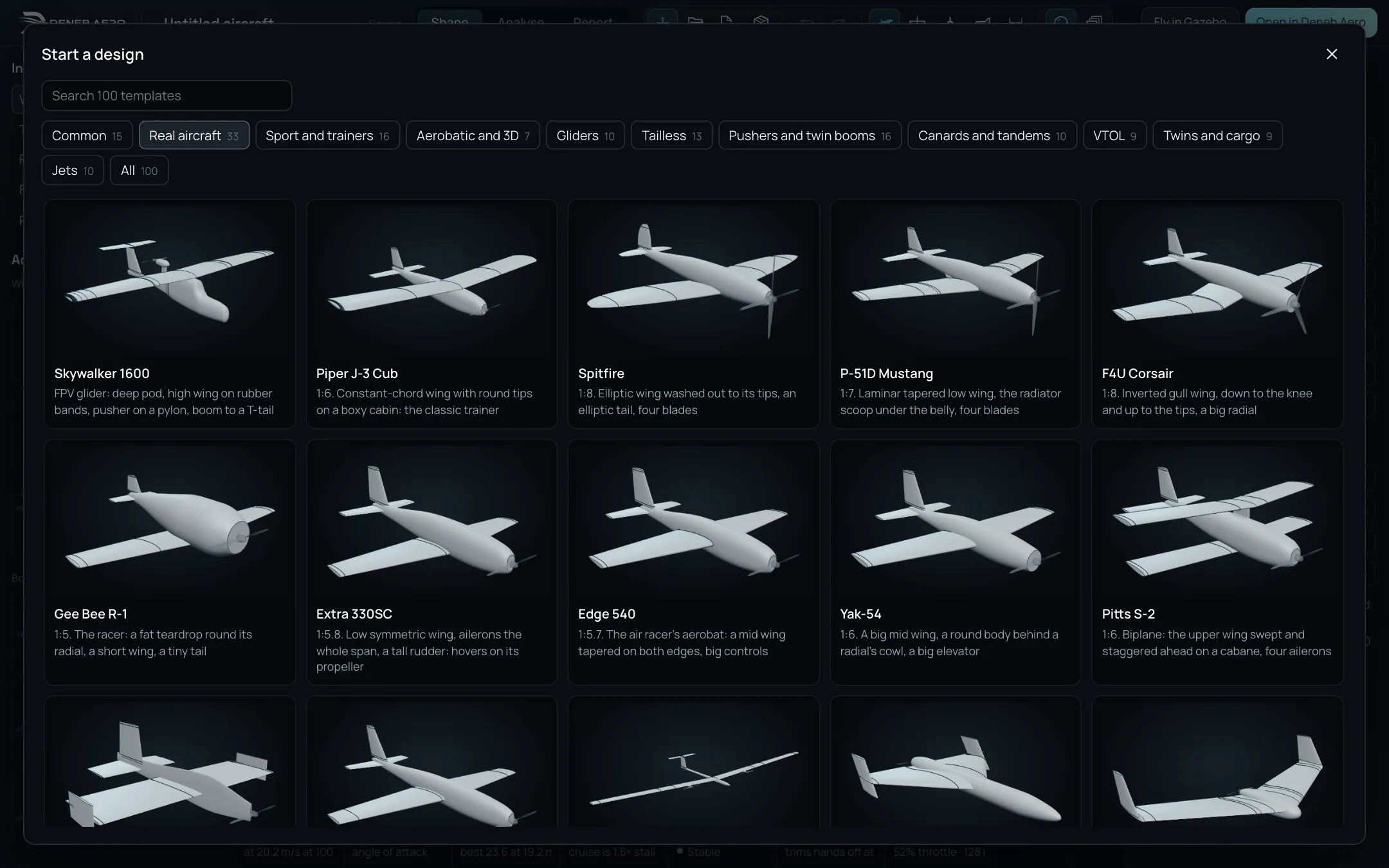
The Real aircraft group: replicas of real aircraft.
Start from an empty design
In the Start a design sheet, select Empty design.
The view shows An empty design. Add the first part with Add a fuselage or Add a wing, or from the parts on the left (see Shape).
The other buttons of the card are Start from a template and Open or import a file.
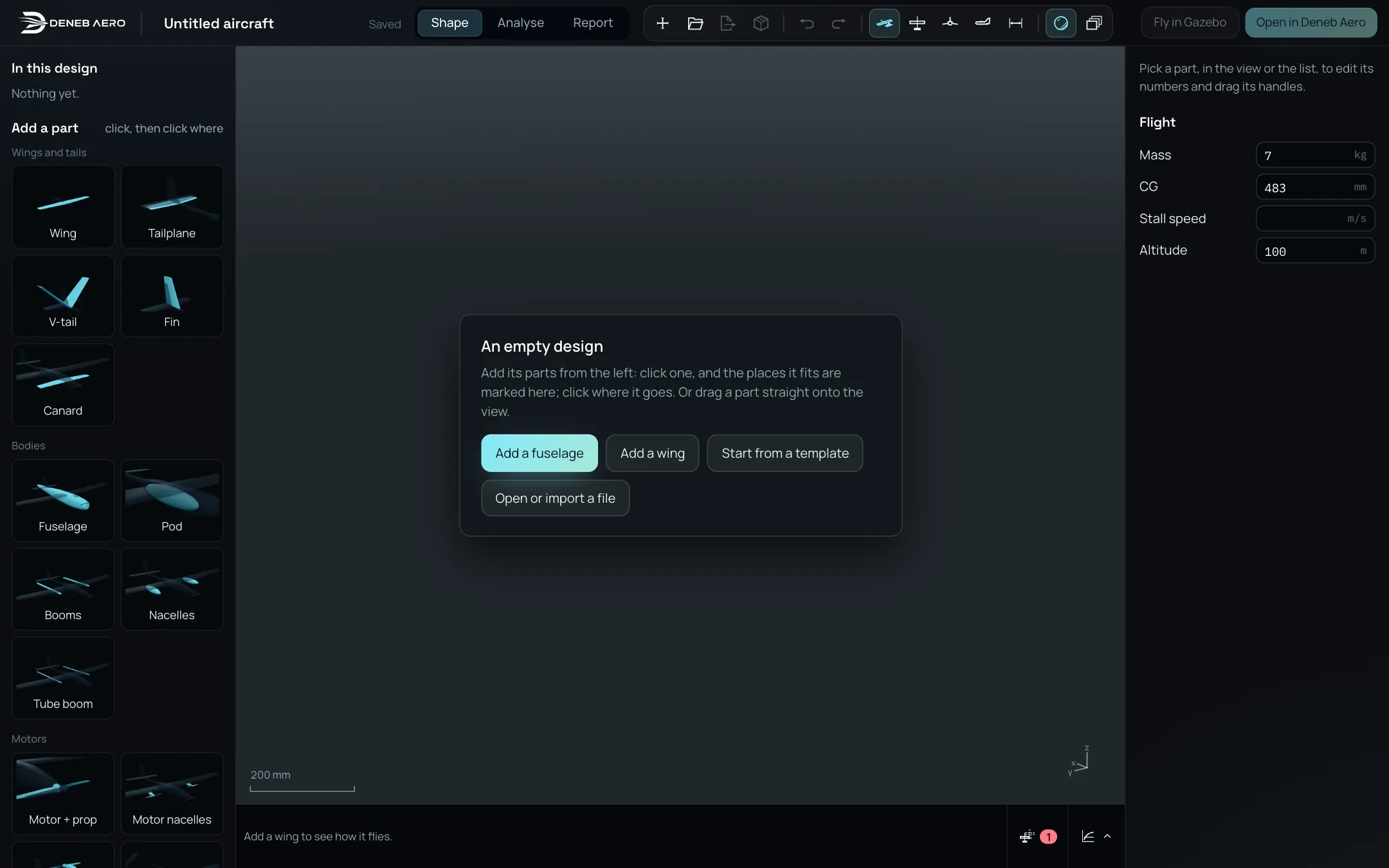
An empty design.
Open a Deneb Design file
A Deneb Design file (.json) is saved by Deneb Design or by its MCP server. It opens as it was
drawn, with its cruise settings if it has them.
Select Open a saved design in the bar.
Select Open or import a file and choose the file. You can also drop the file on the window.
The file opens as a new design. Its name is the one in the file.
If the file is not a design, a sheet Not opened says why.
Import an STL or STEP model
Design rebuilds an STL or STEP file of an aircraft as a design that you can edit: its wings and tails become surfaces, its fuselages become bodies, and the bodies are smoothed. The file is read and fitted on your computer and is not sent anywhere. A large STEP file takes about a minute.
Select Open a saved design, then Open or import a file, and choose the
.stl,.stepor.stpfile. Or drop the file on the window.A card Importing file name shows the steps. Wait until it closes.
The design opens. The file is drawn over it as the layer The imported model, coloured by how far the design is from it: blue close, amber at the 95th percentile, red beyond.
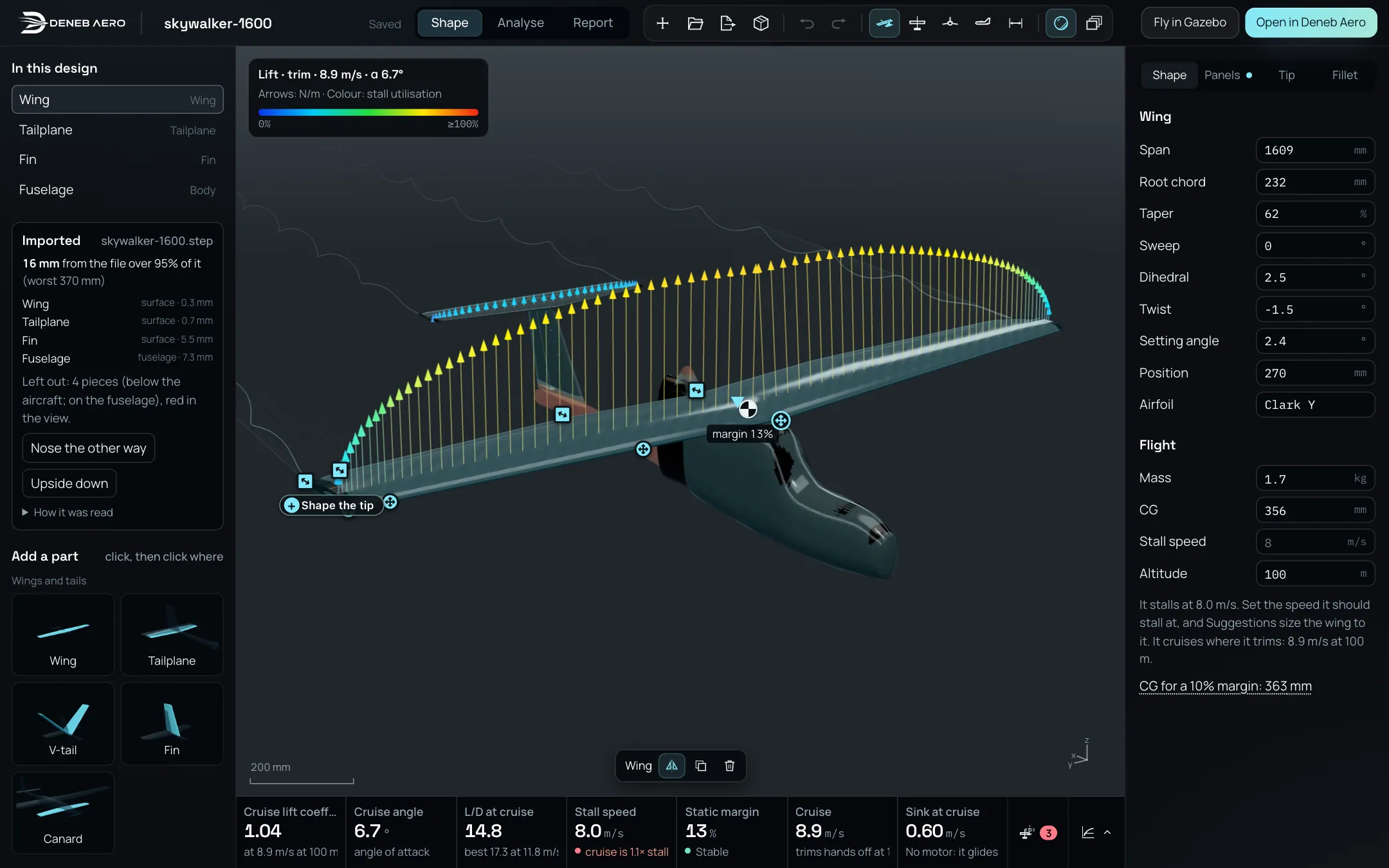
A STEP file after the import. The Imported card is in the part list.
The Imported card says how well the design fits the file:
The first line gives the distance from the file over 95% of its surface, and the worst distance.
The list shows each part, its kind and its distance.
Left out says how many pieces of the file were not made into parts. They are red in the view.
How it was read lists the notes of the import.
If the result is wrong, read the file again with another option. Each one replaces the parts and is one undo step.
- Nose the other way
Use it when the nose was taken to be at the other end.
- Upside down
Use it when up was taken the wrong way.
- Unit
Shown for an STL file only. An STL file has no unit, so the size is guessed. Choose mm, cm, m or inch.
If the import fails, a sheet Not imported gives the reason.
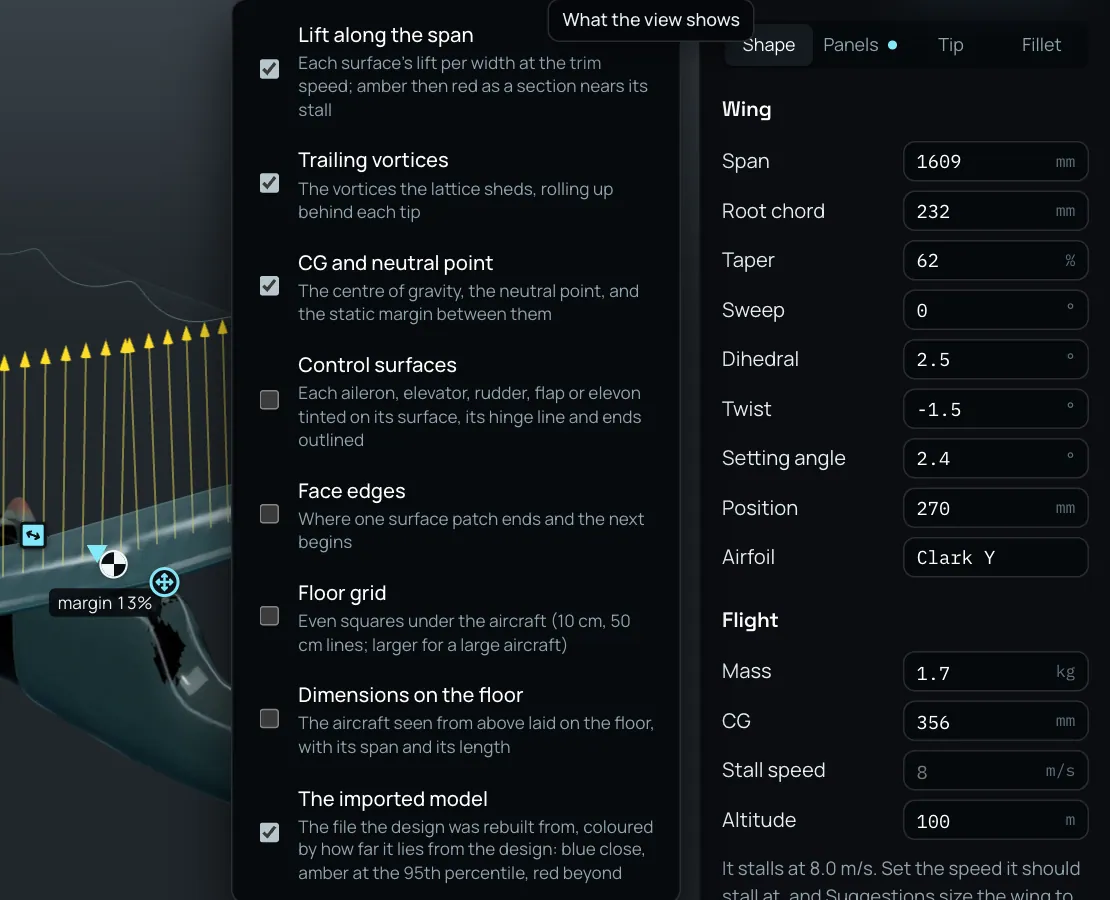
What the view shows, with the layer The imported model.
Open a saved design
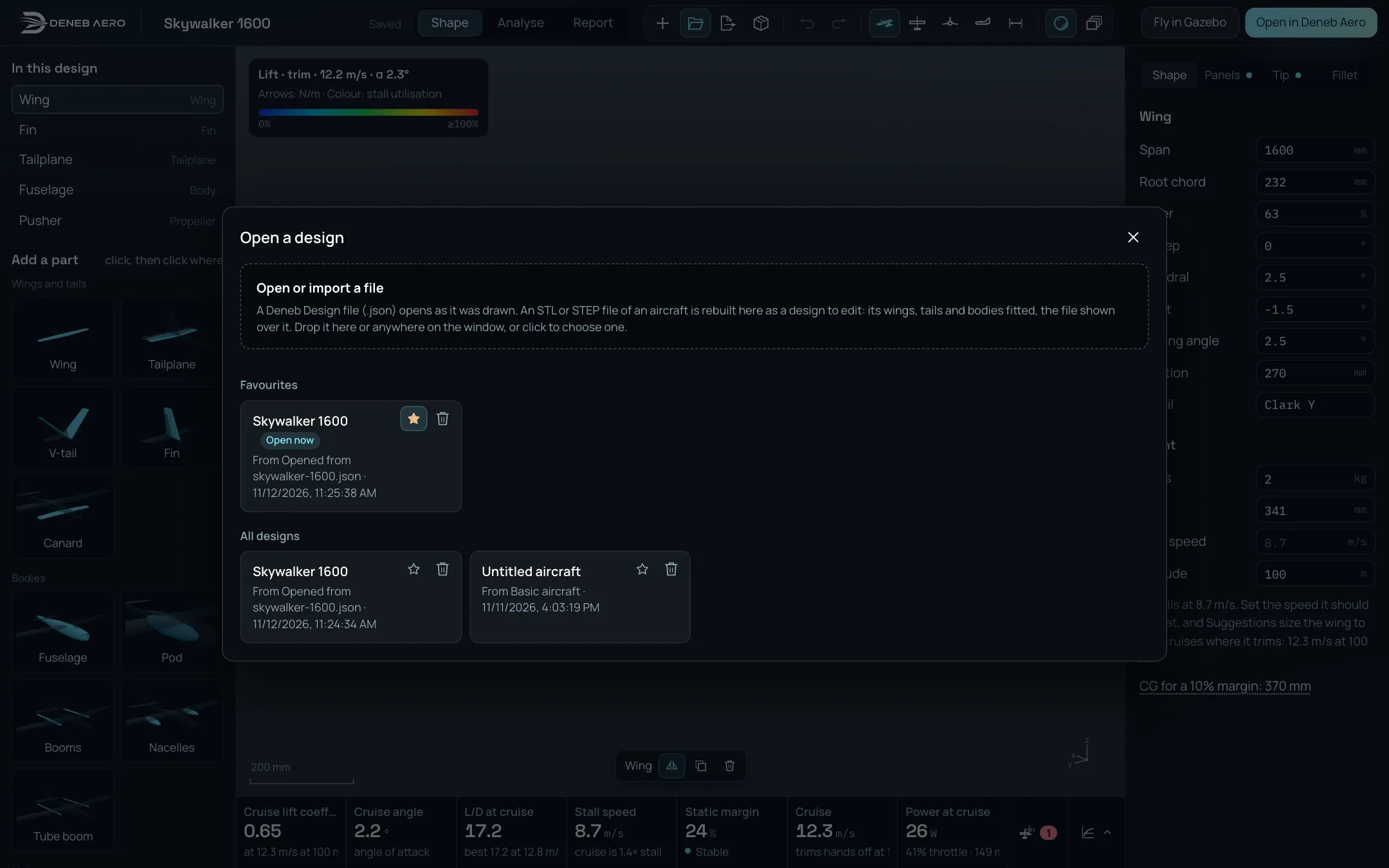
The Open a design sheet, with one design in Favourites.
Select Open a saved design.
Select a design. It opens at the copy that was edited last, in the browser or in your account. The one that is open now is marked Open now.
Each design has a star and a bin:
The star adds the design to Favourites, which are listed first. Favourites are kept in your account, so a design that is only in this browser has no star until it reaches the account.
The bin deletes the design. The card asks Delete “name”?. Select Delete to confirm or Cancel. A deleted design goes from your account and from this browser, and it cannot be recovered. If you delete the design that is open, the next one opens in its place.