Design
Design is the workspace in which you draw an unmanned aircraft from parts, instead of loading a CAD model. You add wings, tails, bodies and motors, change their numbers or drag their handles, and see at once how the aircraft flies: its lift, its stall speed, its static margin and the power it needs. When the shape is right, you hand it on to the rest of Deneb Aero.
Design is part of the Studio. Select Design in the sidebar, or open the address
#/design of the Studio.
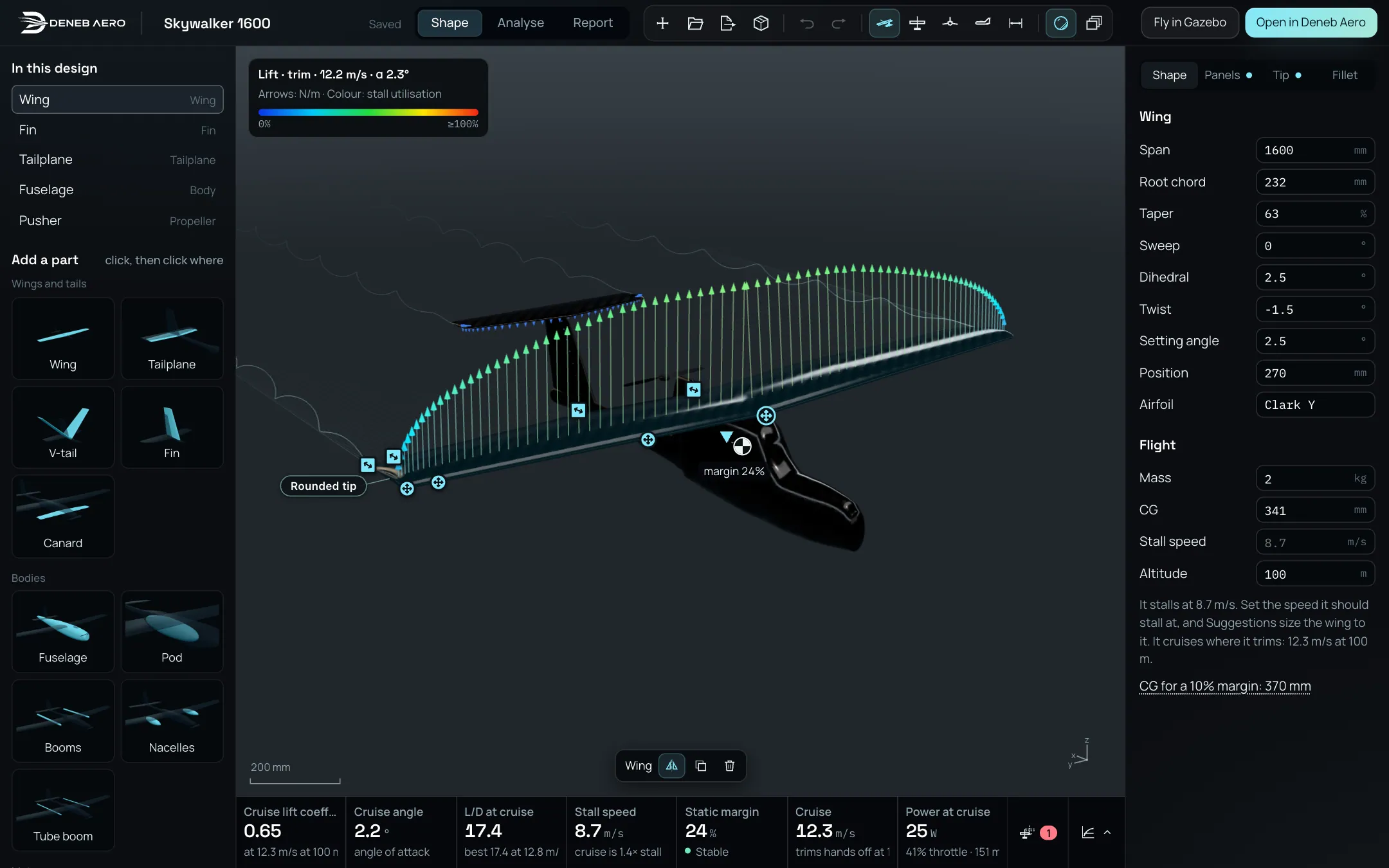
The Shape workspace, with a Skywalker 1600 opened from a Deneb Design file.
In this chapter
What Design does
Starts from one of the templates, from an empty design, from a Deneb Design file (
.json), or from an STL or STEP model of an aircraft that it rebuilds as parts.Shows the numbers of the aircraft as you edit it. They come from a vortex lattice with the 2D polars of the airfoils, worked out on your computer. They are estimates, not CFD.
Puts real SunnySky motors and propeller tables on the aircraft (Motors and Propellers).
Shows the wake behind the aircraft as it flies, live (Live Wake (Preview), a preview).
Suggests changes when something is wrong, for example a diverging spiral mode or a stall speed that is too high, and shows each one as a ghost over the aircraft before you apply it.
Analyses the aircraft in stages (Analyse) and writes a report of it (Report).
Hands the aircraft on: a new analysis in Deneb Aero, a flight in Gazebo, a Gazebo package, or a STEP file.
Window layout
- Bar (top)
The design name, the saving state, the three modes Shape, Analyse and Report, the tools (new, open, export, undo, redo, views, look, layers) and the two buttons Fly in Gazebo and Open in Deneb Aero.
- Parts (left)
The list of the parts of the design, the card of an imported file, and Add a part.
- View (middle)
The aircraft in 3D, with handles to drag, and under it the results as cards.
- Numbers (right)
The numbers of the picked part, and the Flight settings.
Note
Design needs a window at least 1000 px wide. In a narrower window it shows the note Design needs a wider screen instead of the workspace. Widen the window, or turn a tablet sideways.
Saving
A design is saved in your browser a moment after each change. When you are signed in with a plan, it is also saved to your account, and the bar says Saved to your account. Without a plan the bar says Saved in this browser: a plan saves it to your account. If the account cannot be reached, it says Saved in this browser: not in your account yet, and the copy is sent when the account can be reached again.