Analyse and Report
The Analyse and Report modes use the aircraft as it is in Shape. Select the mode in the bar. The aircraft is not changed. Select Shape to go back and edit it.
All the numbers are estimates from Deneb Design’s own methods, worked out on your computer: a vortex lattice, a panel method, the 2D polars of the airfoils and a viscous model. They are not CFD. For CFD, hand the aircraft on (Handing the Aircraft On).
Analyse
Analyse shows the analyses as a chain of eight stages. The rail on the left lists them. Each stage shows its state, the time it took, and its answer in one line. Select a stage to see its charts and tables.
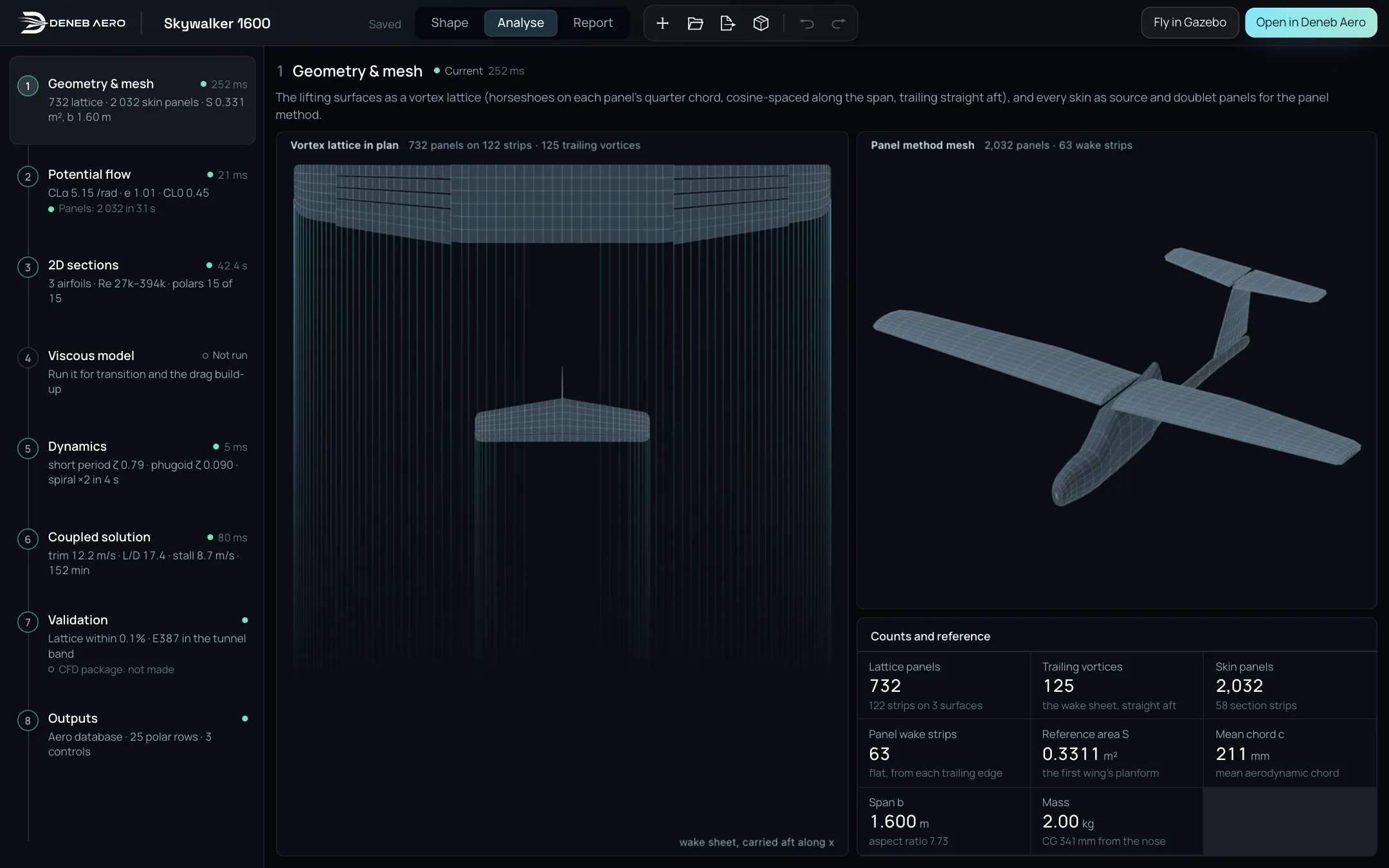
The Analyse mode, with Geometry & mesh open.
The state of a stage is shown by the dot at its right: a filled dot for Current, an empty dot for Not run, and a note when the design has changed since (for example Panels: out of date).
No. |
Stage |
What it shows |
|---|---|---|
1 |
Geometry & mesh |
The vortex lattice in plan, the mesh of the panel method, and the counts and reference values: panels, trailing vortices, reference area, mean chord, span and mass. |
2 |
Potential flow |
Two methods, chosen with the tabs Pressures · panel method and Lift · vortex lattice. The lattice answers every edit at once. The panel method gives the pressure everywhere on the aircraft, and runs when you select Run the panel method. |
3 |
2D sections |
The polars of each airfoil at the Reynolds numbers flown, as Polars by Re, and the Boundary layer of a section at an angle of attack. |
4 |
Viscous model |
Transition along the span at cruise, the profile drag along it, and the build-up of the drag by speed: induced, profile, bodies and fairings. It runs when you select Run the viscous model. |
5 |
Dynamics |
The modes about trim: short period, phugoid, Dutch roll, roll and spiral, each with its damping and its band. The stability derivatives, and the response from a unit start. Play it in the view shows a mode as a motion of the aircraft. |
6 |
Coupled solution |
The tabs Polar, Trim & stall, Controls, Performance and Loads: the polar, the trim and stall, the effect and hinge moments of the controls, the performance on the battery, and the wing loads in the flight envelope. |
7 |
Validation |
How far each method is from a known answer, found by Deneb Design’s own checks. The button Prepare for CFD writes the package that New analysis in Deneb Aero opens, and lists its parts and any problem of the geometry. |
8 |
Outputs |
The aero database in the format of the flight model, with its polar rows and controls. CSV and Download the database save it. |
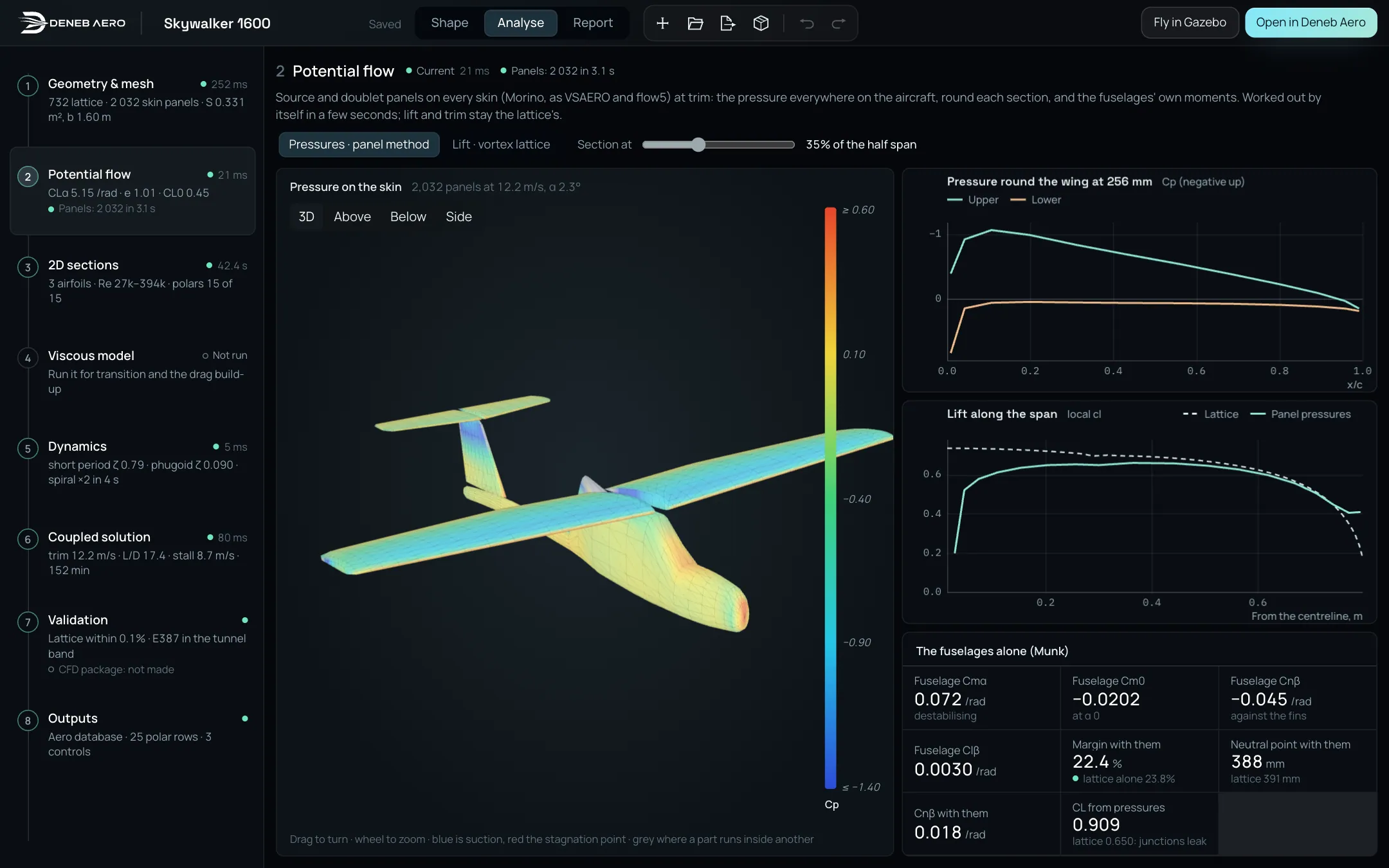
The Potential flow stage with the panel method run.
Select Analyse in the bar.
Select a stage in the rail. The stage you chose is remembered in this browser.
For a stage with a button (Run the panel method, Run the viscous model, Prepare for CFD), select it. It takes a few seconds. When you change the design afterwards, the stage is marked out of date, and the button reads Run again.
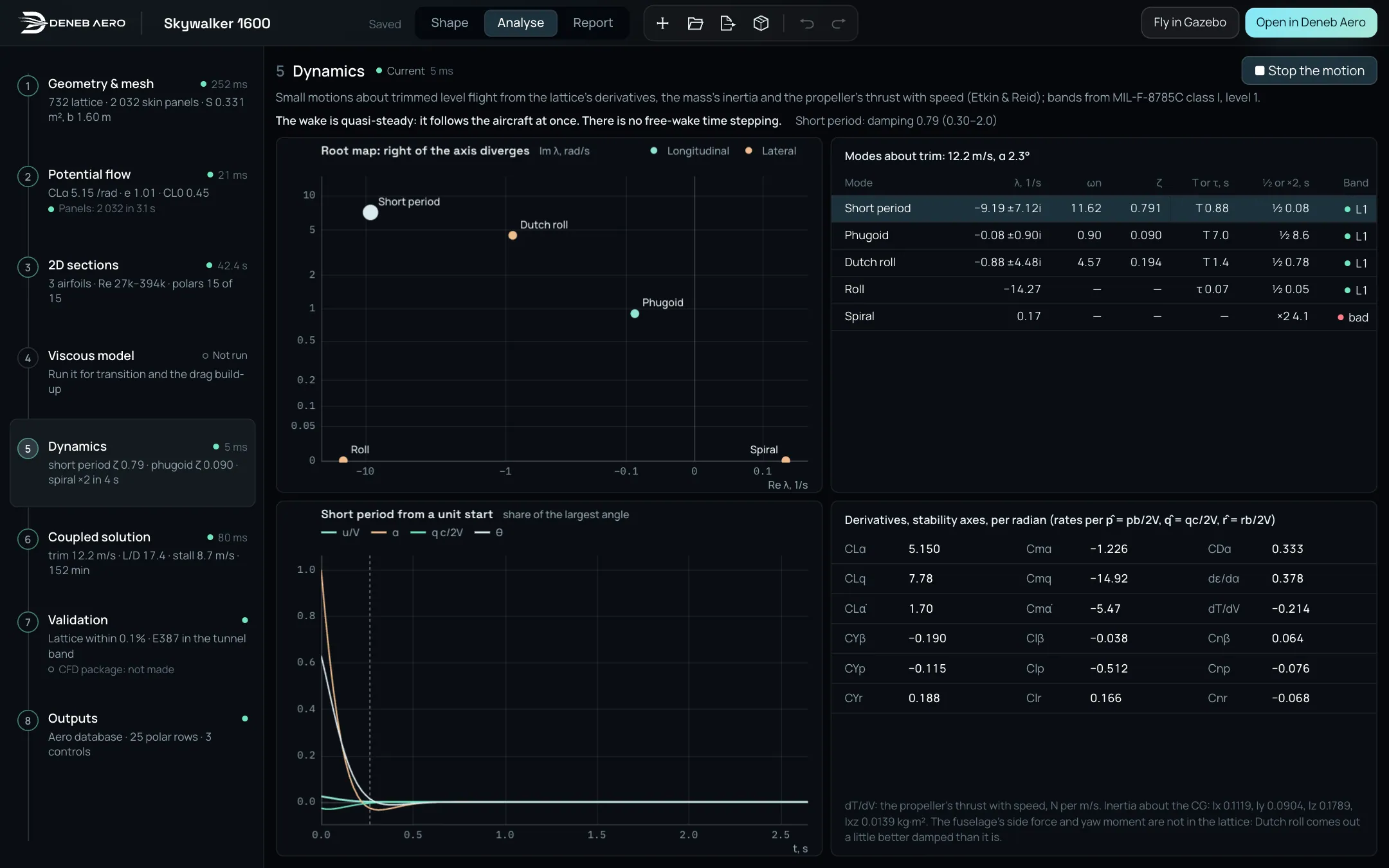
The Dynamics stage: the modes, their bands and the derivatives. The spiral mode is marked bad: it diverges, doubling in 4 s.
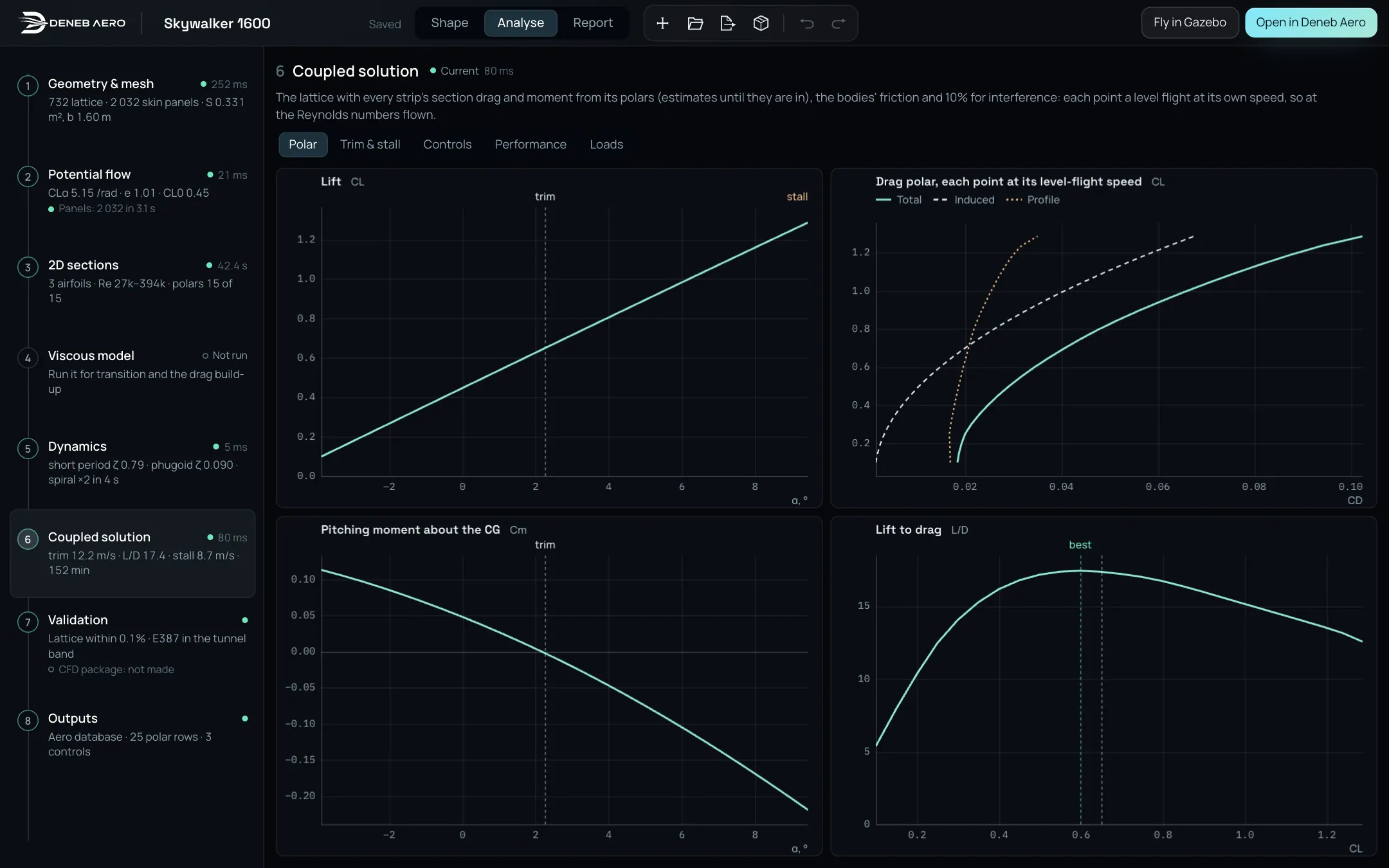
The Coupled solution stage.
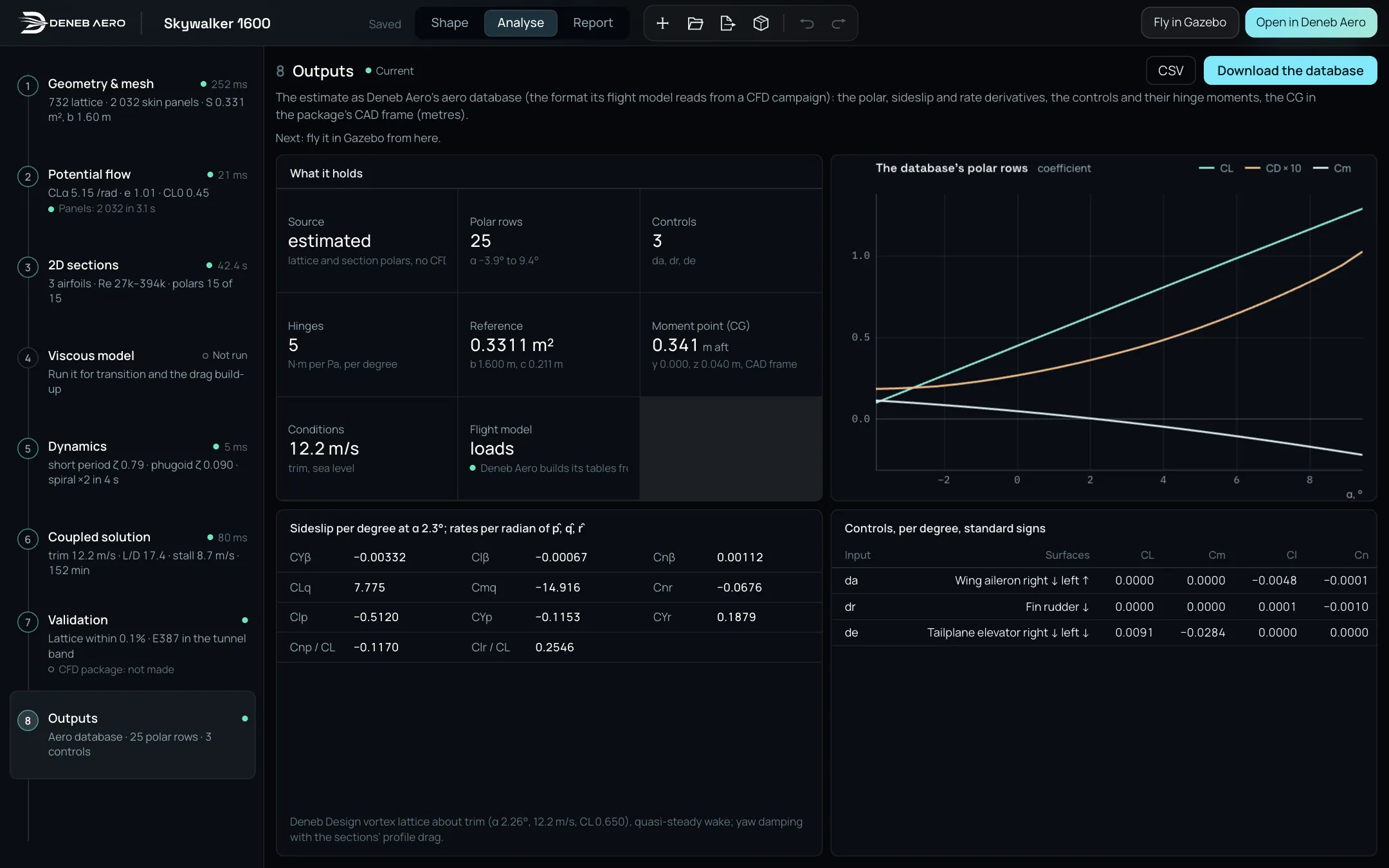
The Outputs stage.
Report
Report writes the design as a document.
Select Report in the bar.
Wait while the card Working out the report is shown. It works out the lattice, the drawings, the viscous drag and the pressures afresh.
The report is shown as a sheet. It is made when you open the mode, so it is always of the design as it is now.
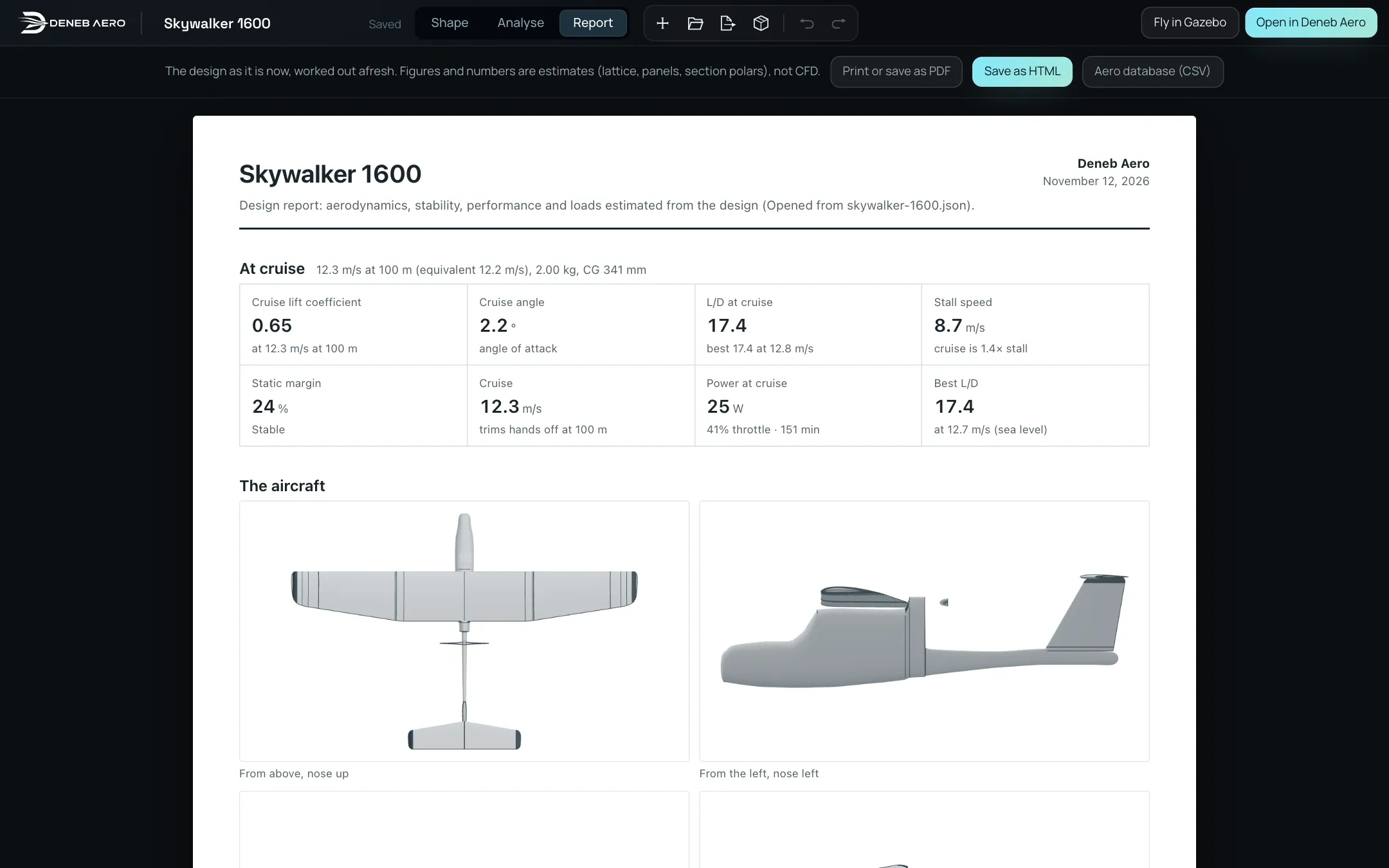
The top of the report.
The report has these sections: At cruise, The aircraft (drawings from above, from the side and from the front), Lift and stall, Polar and trim, Sections, Viscous drag, Stability and modes, Performance, Loads, Controls, Methods and how far to trust them, Aero database and Pressure distribution.
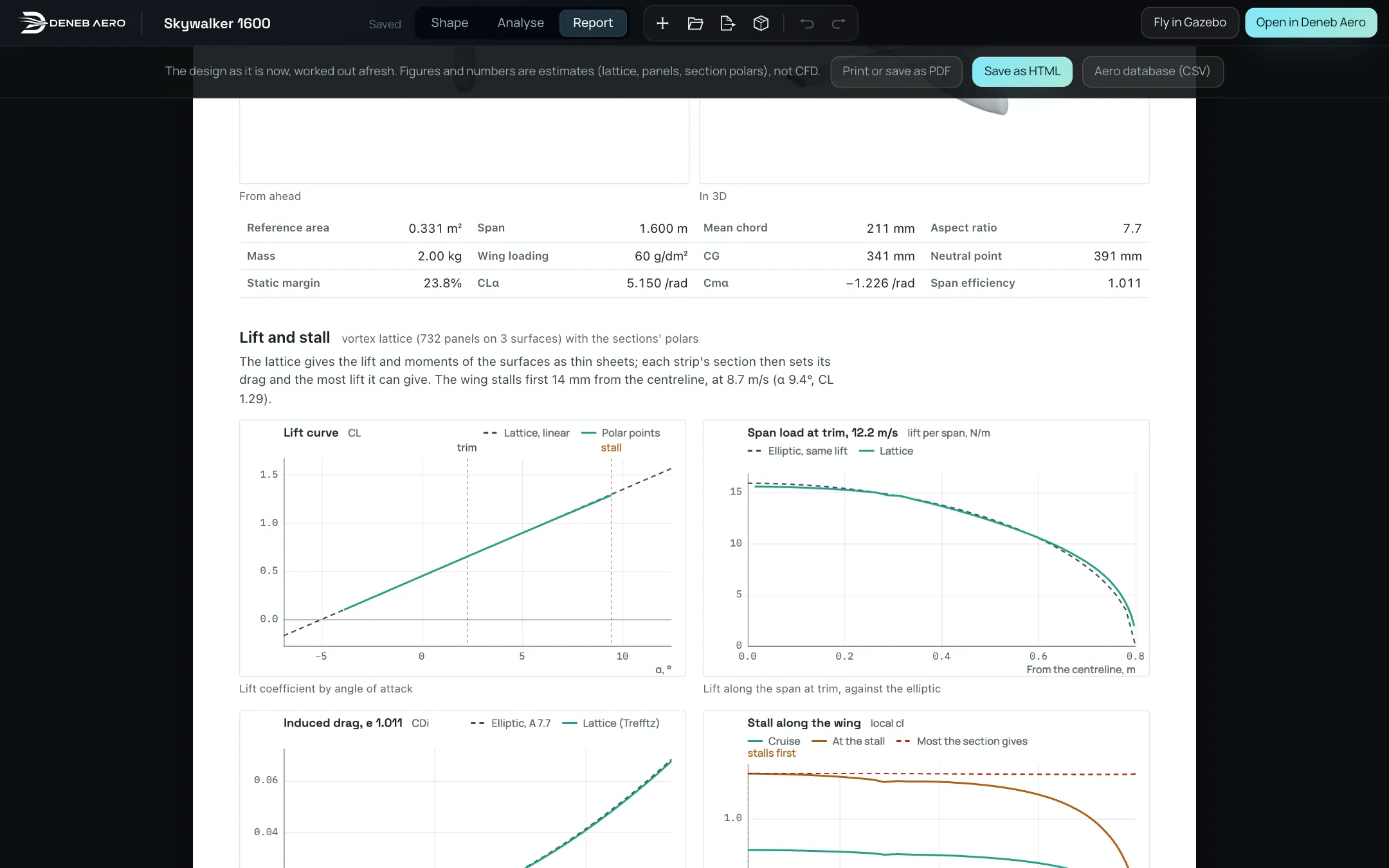
Further down the report.
To save it, use the buttons above the sheet:
- Print or save as PDF
Opens the print dialog of the browser. Choose Save as PDF as the printer.
- Save as HTML
Downloads the report as one HTML file, named design name
report.html.- Aero database (CSV)
Downloads the aero database as a CSV file. Shown when the design has a trim.
The bar above the sheet says that the figures and numbers are estimates (lattice, panels, section polars), not CFD.