Handing the Aircraft On
When the shape is right, the aircraft can leave Design in four ways. The buttons are in the bar. They are not available while the design has no wing or tail, or while another hand-over is running.
Button |
What it makes |
|---|---|
Open in Deneb Aero |
A new analysis in Deneb Aero, with the parts as solids. |
Fly in Gazebo |
A flight in the Gazebo simulator on this computer. |
Gazebo package (tool) |
A ZIP for your own Gazebo. |
Export STEP (tool) |
A STEP file, with each part a named solid. |
All four write the parts of the design as solids, and read them back the way Deneb Aero reads a CAD file. The aerodynamics of a Gazebo flight or package are Design’s estimate, not CFD.
How the control surfaces come free
If the design has control surfaces, Design asks first how each one comes free of its wing or tail, so that it can move. The sheet is titled Control surfaces (Gazebo package for the package).
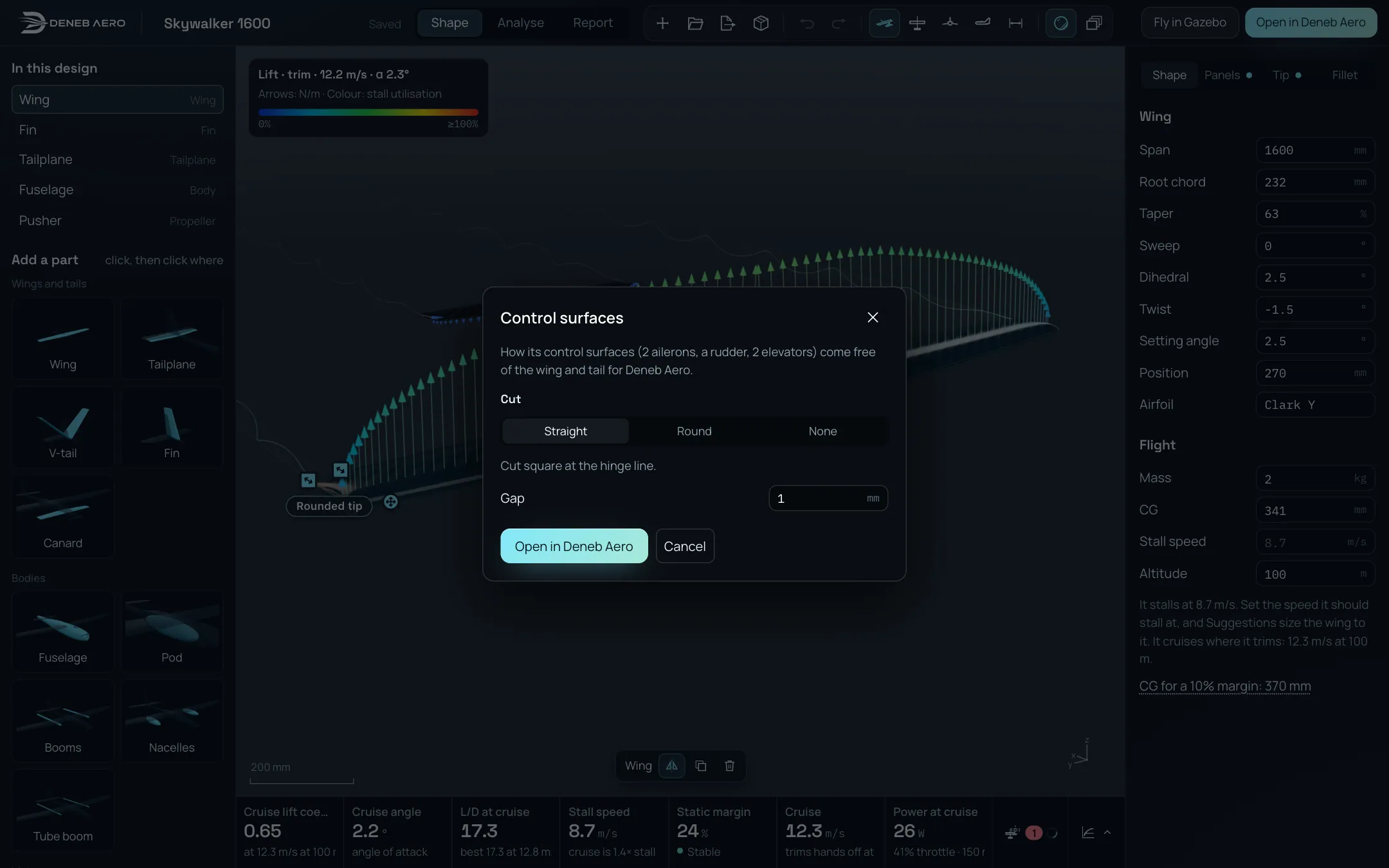
The Control surfaces sheet before Open in Deneb Aero.
- Cut
Straight cuts the control square at the hinge line. Round rounds the nose of the control so that it turns in a cove of the surface. A control that cannot be cut round (a sharply tapered or thin panel) is cut straight, and you are told. None splits it at the hinge line with no gap: two solids that touch.
- Gap
The gap all round each control, at its hinge and at both ends. From 0.2 mm to 5 mm. It is not shown for None.
Your choice is kept in this browser for the next time. Select the button of the sheet to go on, or Cancel.
Open in Deneb Aero
This sets up a new analysis of the design in Deneb Aero: its geometry, the aircraft (controls, mass, CG, inertia and rotors) and the reference values, as New analysis would. You then go on as in Running an Analysis. Nothing is computed until you launch the analysis.
Select Open in Deneb Aero.
If the design has control surfaces, choose how they are cut, then select Open in Deneb Aero in the sheet.
The card Opening it in Deneb Aero shows the steps. It takes about half a minute.
The New analysis wizard opens with the package already loaded. Continue through its steps; the CFD starts only when you launch it at the last step.
If it fails, a sheet Not opened gives the reason.
Fly in Gazebo
This flies the aircraft in the simulator on this computer. Its flight model comes from Design’s own estimate (its lattice with the polars of the sections), so the first flight is possible without any CFD.
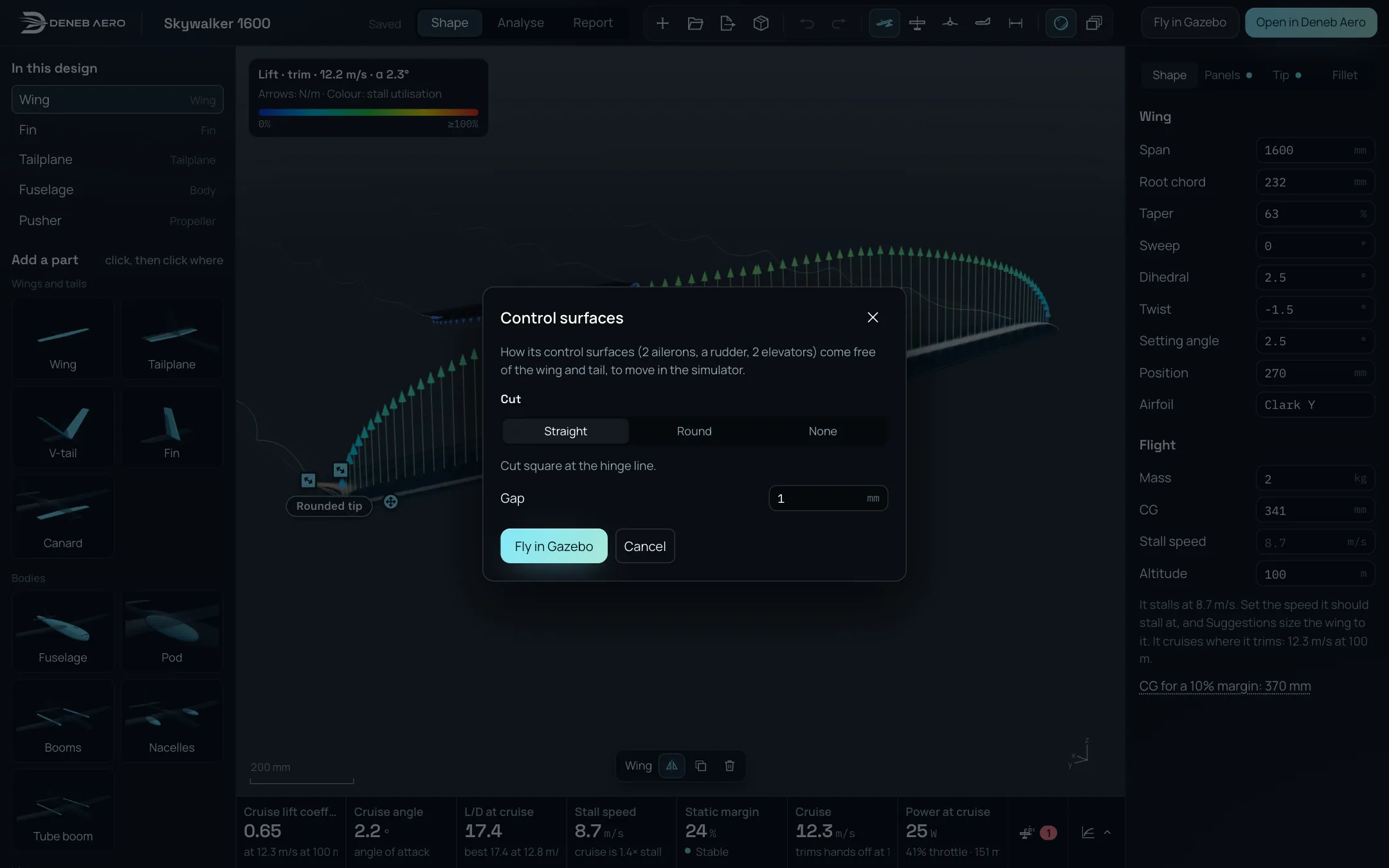
The sheet before Fly in Gazebo. Selecting its button starts the simulator.
Select Fly in Gazebo.
If the design has control surfaces, choose how they are cut, then select Fly in Gazebo in the sheet.
The card Flying it in Gazebo shows the steps. It takes about half a minute.
The flight view of the simulator opens. See Starting a Flight.
A flight needs the application on your computer. If you use Design on the website (aero.deneb-systems.com), Fly in Gazebo and Open in Deneb Aero open the sheet Fly it in the Deneb Aero app or Run its CFD in the Deneb Aero app instead. The design is saved to your account, and Open it in the app opens it in the Studio of the application under Design, where you select the same button. Download the app goes to the downloads. The application must be version 0.1.18 or newer, open and signed in with the same account.
Gazebo package
The Gazebo package is the aircraft for your own Gazebo installation. Its contents are the same as the package of a project (Gazebo Package), with the estimate of Design in place of the CFD results. There is no wind.
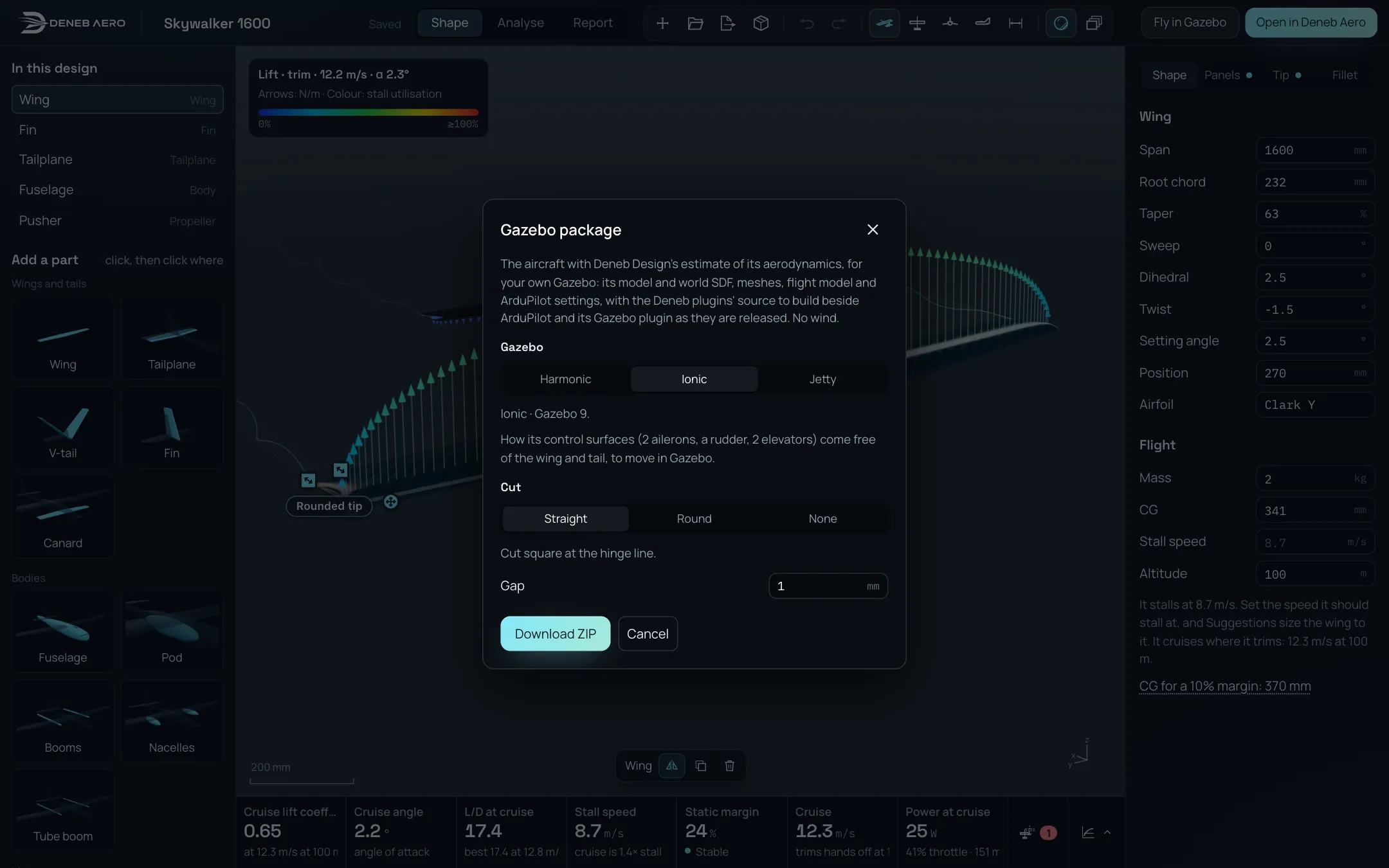
The Gazebo package sheet.
Select the tool Gazebo package in the bar (the box).
Select the Gazebo release you use: Harmonic, Ionic or Jetty. The one used last is marked. The line under the buttons gives the full name, for example Ionic · Gazebo 9.
If the design has control surfaces, choose the Cut and the Gap.
Select Download ZIP.
The card Building the Gazebo package shows the steps. It takes about half a minute.
When it ends, a sheet Gazebo package saved names the file. The ZIP is in the folder where your browser saves downloads. Its
README.mdsays what to install (Gazebo, ArduPilot SITL and its Gazebo plugin, as released), how to build the Deneb plugins inruntime/and how to fly it.aircraft/README.mdlists the assumptions of the estimate.
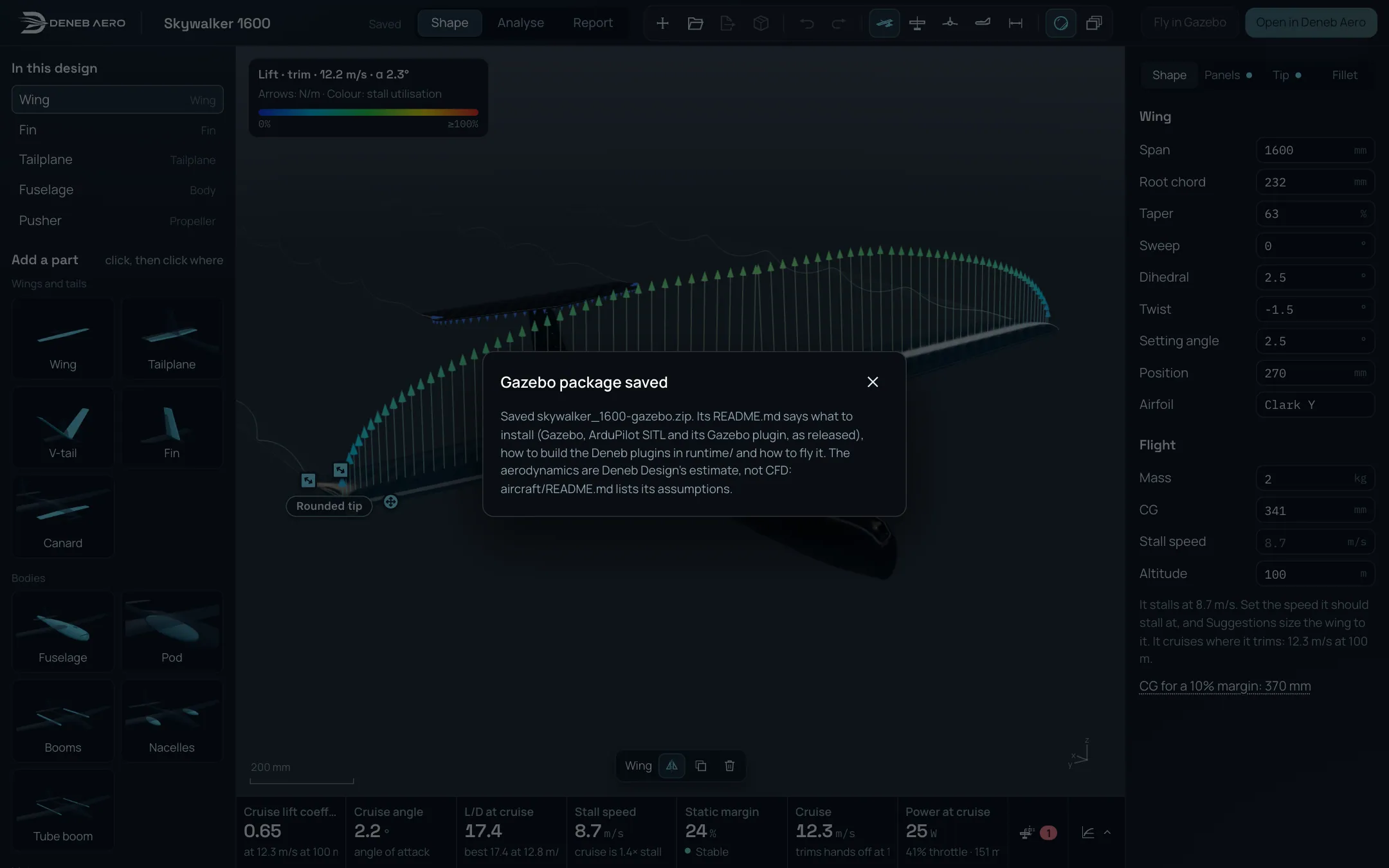
The sheet when the package is saved.
Export STEP
The tool Export STEP writes the design as a STEP file in which each part is a named solid, and the browser saves it. It asks for the control cut as above. The file can be opened in a CAD program, or imported into Design again (Starting a Design).
The loading card
While a hand-over runs, a small card is shown in the middle of the window. It shows an airfoil in a stream, the name of the job, the step it is on, and what the job does. The streaks follow the airflow round the airfoil, long and bright where it is fast. The card has no close button: it closes itself when the job ends, and a sheet says what went wrong if it fails. The same card is shown while a file is imported and while the report is worked out.
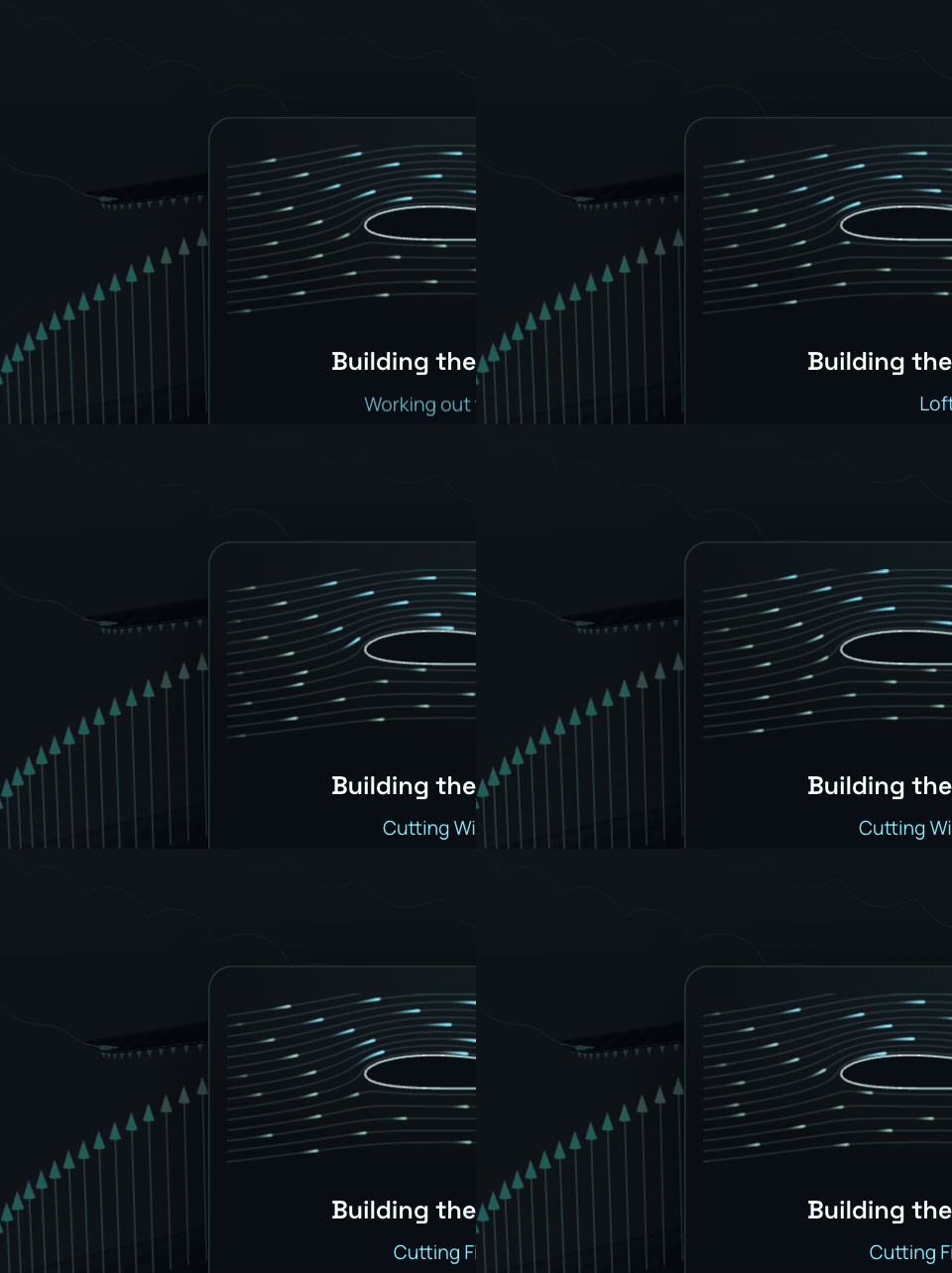
The card while a Gazebo package is built.
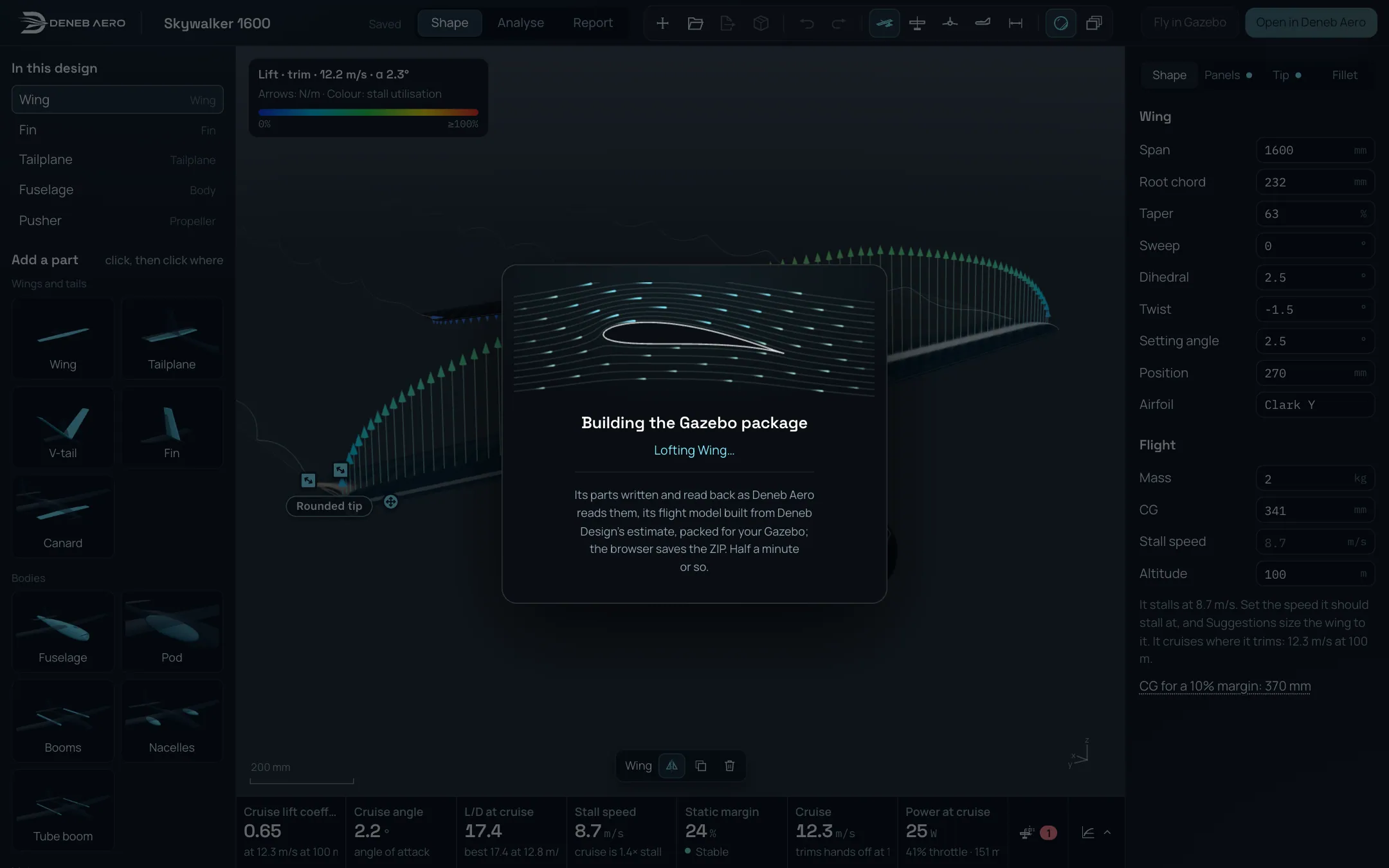
The card in the window.